Poster Design Done Right, From Message to Print
Poster design works best with one clear message, a strong focal point, and readable text. Follow a step-by-step build and get print sizing right.

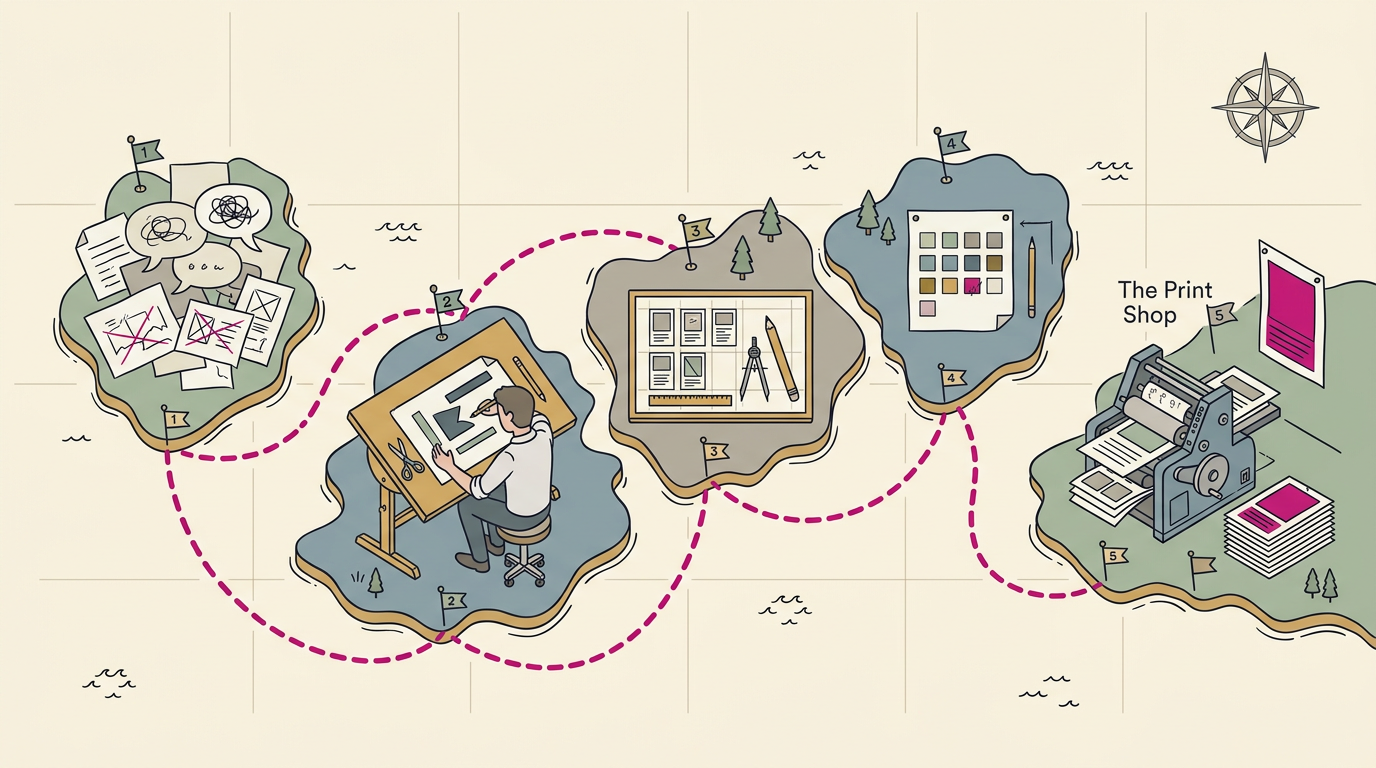
Poster design is the process of arranging text, images, color, and space to communicate a message quickly on a printed or digital display. Start with one audience and goal, then use a strong focal point, readable headline, clear visual hierarchy, and only the details that help people act; check size, image quality, and print settings before exporting. Clear, well-placed posters are easier to notice and understand, and make the next step obvious.
Think about the last poster that stopped you in a hallway. One clear image or headline grabbed you in a second or two, and the rest blurred together. That’s the job of a poster: get noticed fast and make the next step obvious.
Here’s the plain answer: a poster that works has one clear message, a strong focal point, and text you can read from across the room. You don’t need to be a designer to get there.
We’ll cover the core rules, a step-by-step build, helpful tools, and print-ready files, so your next poster brings people through the door.
Poster Design for Each Purpose and Audience
Every good poster starts with two questions: who’s reading it, and what should they do next? Here’s how those answers change with the purpose.
Research posters for academic conferences
A research poster sums up a study on one board so a visitor grasps the main finding fast. Lead with the finding, not the method. At a poster session, presenters stand by their boards and talk with visitors who wander by.
The better-poster movement urges fewer words and bigger visuals. A digital poster shows the same content on a screen, with the same rule: one clear message.
Promoting events and products with posters
A poster is an affordable marketing tool that sits where people walk by. Make the offer the headline, and sell what people get, not how clever the design looks. Lead with a sharp product photo.
Event and product posters need a call to action: the one thing you want viewers to do, like call, book, or stop by this weekend. A dental office with a whitening special, for example, lists the offer and phone number, so the next step is one call.
Launch and sale posters also need an end date, which gives people a reason to act now.
Two details help a poster work harder:
- QR code. Link a quick response (QR) code, the square a phone camera scans, to your shop page so the offer is one scan away.
- Essentials. Add your address, hours, and phone number so the poster still helps when the doors are closed.
Hang it where people already pause, like near the register or the door. Think about viewing distance too: the headline should read from where someone actually stands.
Selling posters as wall art
Design a series in one style, with matching colors, layout, and fonts, so buyers want the whole set. Offer each design in a few common sizes. A mockup, a picture of the print on a real wall, helps buyers picture it at home, so use one in every listing.
A print-on-demand shop prints each order only after it’s placed, so you skip stocking inventory.
Personal posters for fun and home decor
Personal projects are a low-stakes way to practice, so aim for play over perfection. For inspirational quotes, keep the words few and the background calm so the message carries.
For home and office decor, match the size to the wall and keep colors consistent so the set looks intentional.
Plan your audience and goals first
Before you open a design tool, work through these steps:
- Define your target audience. Who will actually see it: passing foot traffic, regulars, or event guests?
- Set your poster goal. Pick one: a call, a booking, a visit, or a sale.
- Sketch the layout on paper. A rough drawing places the headline, image, and call to action before you touch a screen.
- Identify key information. List the few details the reader must have.
A plumber who wants more emergency calls needs a phone number readable from across the room more than style.
Keeping posters on brand
Keep your logo and brand colors on every poster so people recognize you at a glance. Use the same fonts as your signs and menus. If you don’t have a brand font yet, pick one for headlines and one for body text.
Carry the same design across every touchpoint, matching the van lettering and menu styling, so a customer sees one business, not three.
Core Rules That Make a Poster Work
Get these basics right first. They decide whether a poster gets read or walked past.
Make text readable from across the room
Someone walking past your window won’t stop to squint. Start with a large title that names the offer. Then check high color contrast: dark text on a light background, or light text on a dark one. Body text needs to be readable a few steps back, too.
A poster gets glanced at, not studied. Picture a bakery whose window poster says “Fresh bread every morning” in big, dark letters on cream. A passerby reads it from the sidewalk and walks in.
Guide the eye with clear visual hierarchy
Visual hierarchy tells the eye what to read first. Use three levels:
- Headline: the biggest, boldest line, usually your offer or business name.
- Subhead: one step down, with the supporting detail.
- Body text: the smallest, lightest copy, for the details people look up once they’re interested.
Break up text blocks with short lines and space between groups. Use bullets and small headings for lists like services or hours. Avoid text-heavy layouts. A poster that needs a full paragraph belongs on a flyer or your website.
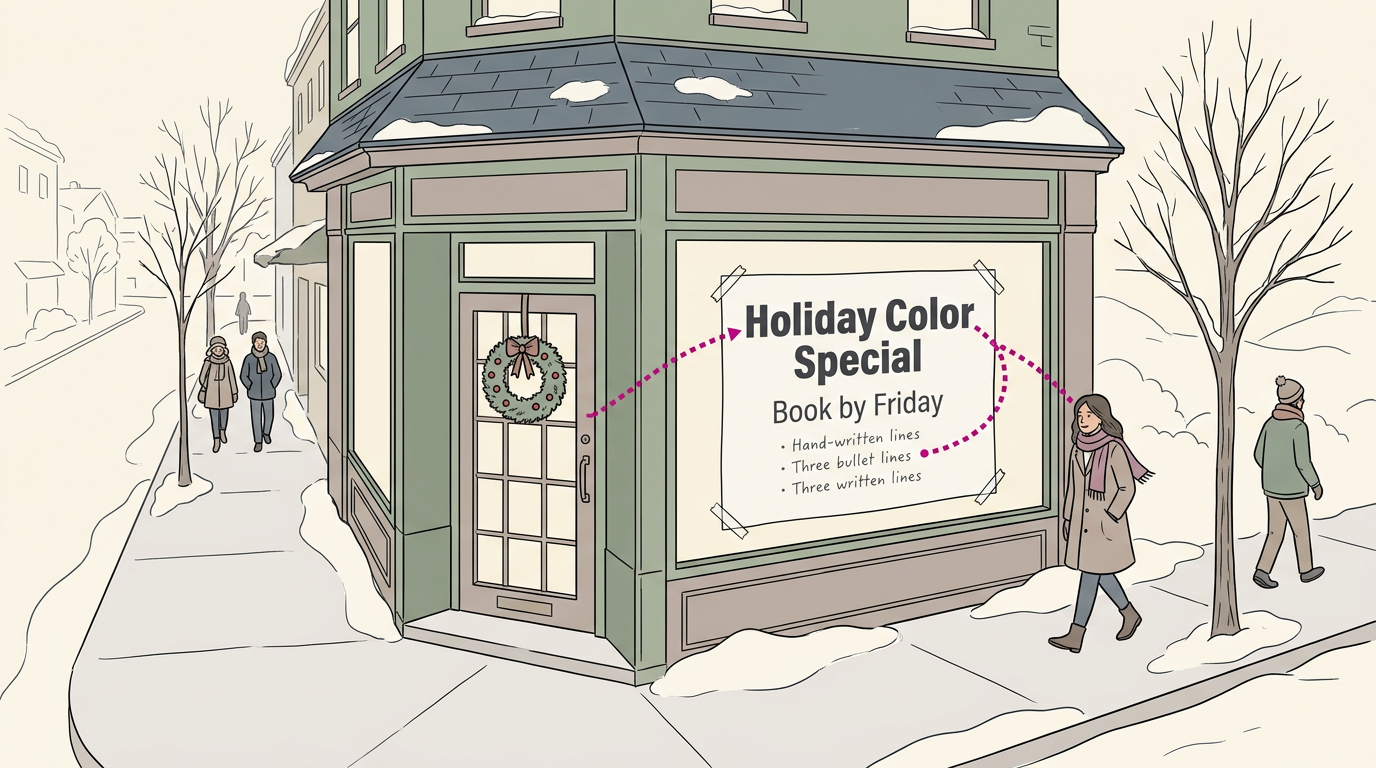
Consider a salon promoting a holiday special: “Holiday Color Special” as the headline, “Book by Friday” as the subhead, and three short bullets below. Someone who reads only the top line still knows the offer.
Keep one message and plenty of space
Give each poster one message. A sheet promoting new hours, a loyalty card, and a sale tends to get none of them across. Pick the one thing you want people to do and build around it.
Leave room to breathe. White space, the empty area around your text and images, isn’t wasted space. It makes the main point easier to find. Step back to arm’s length and see if you still get the point at a glance.
If you have to hunt for it, cut something.
Keep colors, fonts and brand identity consistent
Choose a consistent color scheme: a small set, such as your logo color, one accent, and a neutral. Reuse it on every poster, flyer, and sign, and stick to a few fonts too.
Matching brand identity means your logo, colors, and tone look like one shop made them. A plumber whose van, yard sign, and door hanger share one blue and one font gets recognized before anyone reads the name. You’re building recognition, not novelty.
Picking colors and fonts that work together
Colors and fonts should support the message, not compete with it. These options help:
- Complementary colors sit opposite each other on the color wheel, like blue and orange. Use them for punch, in small doses.
- Monochromatic palettes use shades and tints of one color. They feel calm and cohesive.
- Gradient backgrounds blend one color into another. Keep text on the calmer, more solid part so it stays readable.
For fonts, pair a bold font for headlines with a plain one for body text. Pick two with clearly different styles. Two fonts that nearly match read as an accident.
Balancing layouts with symmetry or asymmetry
Symmetry mirrors elements across a central line. Asymmetry places weight unevenly but still keeps the page balanced. Balance doesn’t mean matching.
- Mirrored layouts center the headline and match elements on each side.
- Split layouts divide the page into two zones, like a photo on one side and text on the other.
- Radial symmetry arranges elements around one focal point, like a sale badge with icons circling it.
- Playing with asymmetry offsets a large headline and balances it with a color block or small image.
Once it’s built, check that the page feels balanced, not lopsided.
Build a Poster Step by Step
Building a poster comes down to three stages:
- choosing a starting point
- adding your content
- checking it before it goes to print
Pick a template or start from scratch
Start with the size, based on where the poster will hang, then pick a template that fits. Starting from scratch gives you full control, but it’s more work, so browse a few templates for inspiration first.
A bakery owner picking a template for a weekend sale has a draft ready before the lunch rush ends.
Add your content and tweak the style
Add your headline and images first, keeping it short enough to read from a few steps away. Upload your own photos of your storefront or products when you can, since real pictures are easier to recognize than stock.
Then adjust the type and colors for clarity rather than decoration, with readable fonts and strong contrast. Add your logo and phone number so people know who to call.
Check, export and share the final version
Animations and overlays are optional for print, so add one only if it makes your text easier to read. Then check the design in three steps:
- Preview with a mockup to see it in a real setting, like a window or wall.
- Test one printed copy before the full run: tape it where customers pass, step back, and check that the headline and phone number read from across the room.
- Download and share the final file, then revisit saved projects so next season’s poster starts from your existing design.
A dentist’s office that did this caught a phone number too small to read from the parking lot. Catching it early beats a reprint.
Tools and Features for Making Posters
The right tool depends on your deadline and skill level, and you don’t need expensive software to get a sharp poster.
Which software to make posters with
It’s less about finding the best tool and more about finding the right one for your deadline. Here are the main options:
- PowerPoint: A presentation program you may already have, adjusted to poster size.
- Google Drawings: A free, browser-based drawing tool for simple flyers and signs.
- Canva: A template-driven design app that’s quick for busy owners.
- Illustrator and InDesign: Adobe’s professional tools for precise, print-ready layouts, with the steepest learning curve.
- Adobe Express: Adobe’s simpler option for quick flyers and social graphics.
- Kittl: A design tool with a strong focus on text and lettering.
Start from templates or a blank canvas
Think of a dentist’s office manager who needs a “new patients welcome” poster by Friday. She opens a category template, swaps in the office name, phone number, and hours, and has a draft before lunch.
- Free blank templates: Ready-made layouts you can start from at no cost.
- Category-specific templates: Layouts sorted by purpose, like a sale or open house.
- Start from blank canvas: An empty page for when you know exactly what you want.
- Turn designs into templates: Save a poster you love so the next one takes minutes.
Can ChatGPT make a poster?
Partly. A chat assistant like ChatGPT can brainstorm a headline or describe a layout, but it isn’t a design tool, so you’ll still need one to finish the job. Some design tools now include artificial intelligence features:
- Text-to-image generation: Describe a picture, and the tool creates it for your poster.
- Text-to-template: Describe the poster you need, and get a layout to edit.
- Text effects: Style a headline with shaped or textured lettering.
- Insert or remove objects: Add an element to a photo or erase what you don’t want.
Consider a bakery owner who types “weekend pastry sale” into a text-to-template tool and gets a starting layout in minutes. She swaps in her shop name and hours, and the draft is ready before the morning rush.
Whatever the tool makes, check every name, phone number, and date yourself.
Import your own files and stock assets
A few features keep you from starting over:
- Stock photos and video: Licensed images and clips you can add without shooting your own.
- Upload PSD or AI files: Bring in existing Photoshop (PSD) or Adobe Illustrator (AI) files so your logo doesn’t need rebuilding.
- Fonts and icons library: Built-in lettering and symbols that match your brand.
- Background removal: Lift a product or person off a busy backdrop.
Think of a salon owner who uploads her logo, then removes the busy wall behind a product photo so the bottle stands out. The result looks like her shop. Not a generic template.
Share for feedback and resize for formats
Three features help you finish strong:
- Share link for feedback: Send a link so staff or regulars can comment without the software.
- Co-edit in real time: Two people can change the same design at once, so the owner and front desk fix wording together.
- Resize for multiple formats: Turn a finished design into a flyer, a social post, or a window sign.
A restaurant manager shares a link with the owner and the host stand, and each comments on the specials wording before anything goes to the printer. That’s one round of fixes instead of a string of emails. One design, many uses.
What free and paid plans include
Check what each plan covers before you commit:
- Free plans: Often enough to build and test a basic poster before you pay anything.
- Premium features: Extra templates, stock images, and tools that usually sit behind a paid upgrade.
- Commercial licensing: Confirm your plan allows business use of templates, photos, and fonts on printed posters.
- Free via institution subscription: Some schools, libraries, and other institutions give access to paid tools, so check before you buy.
A few minutes with the terms now beats an unpleasant surprise at the printer.
Visual Techniques That Make Posters Stand Out
A poster competes with everything else on the wall, so every visual choice needs a job. Here’s how we’d make yours stop people and keep them reading.
Let text and images work together
Strong posters let words and pictures share the job. Start with balance: if the image dominates, keep the headline short. Try overlaying text on images only where the background stays calm enough to read.
Treat the type itself as text as visual composition: letter shapes, lines, and empty space steer the eye. Large-scale typography works like a storefront sign.
A bakery promoting a Saturday sale might print ‘SATURDAY’ huge across the top, so passersby catch the day from across the street.
Use icons and images as backdrops
Icons as background elements, such as a faint row of scissors along the bottom edge, say what you do without extra words. For texture, try patterns from icons: one small symbol tiled at low contrast.
Leave negative space with text open, so the copy won’t feel crowded. When details like hours must fill the page, use images over text-heavy content: a faded photo behind the copy.
A dentist promoting a cleaning special could place faint toothbrush icons behind the offer, with the phone number in clear space, so the price is still the first thing people read.
Add depth with layers and shadows
A flat poster can blend into the wall. Aim for depth rather than clutter with three techniques:
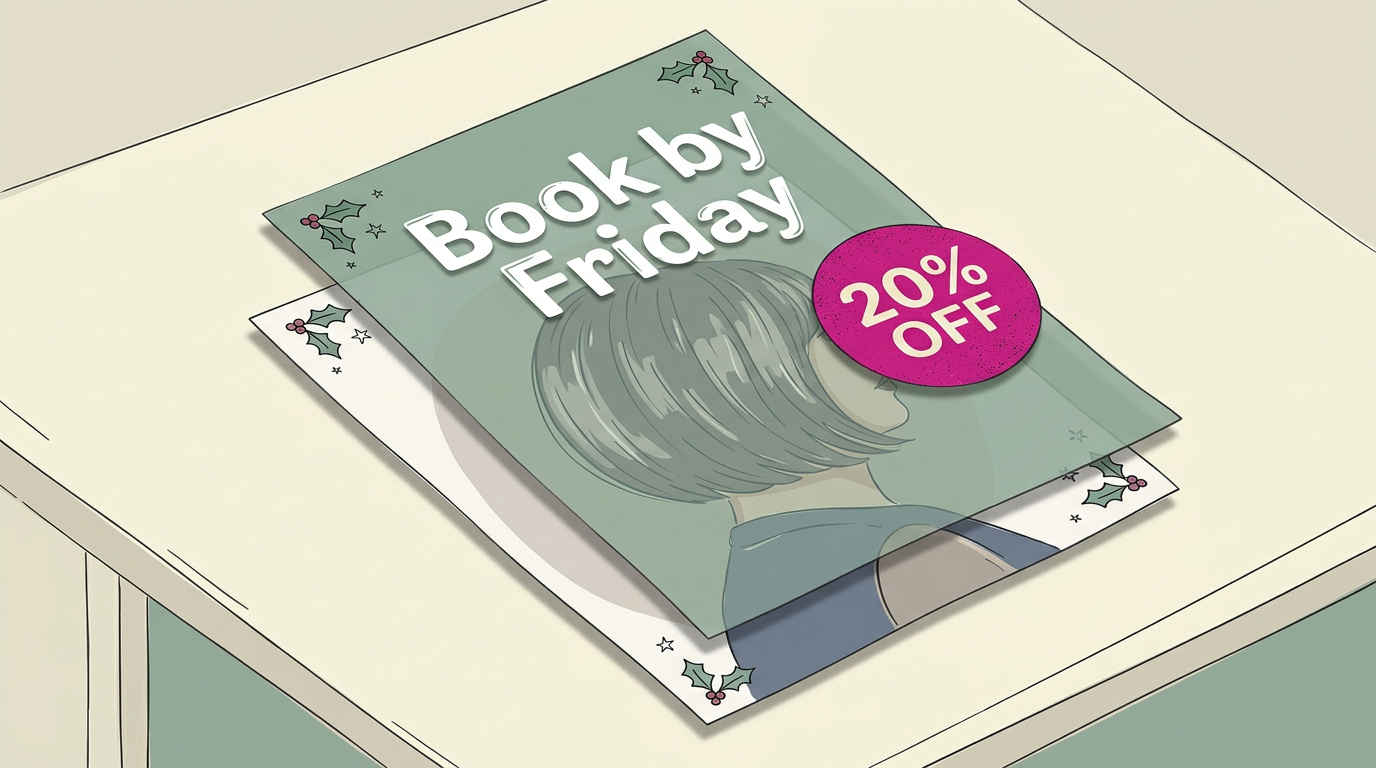
- Semi-transparent overlays. A tinted panel over a photo keeps white text readable.
- Shadows and highlights. A soft shadow under a headline or a bright edge on a banner lifts it off the page.
- Geometric shapes with textures. A bold circle behind the offer, with a subtle grain, adds dimension.
A salon owner’s holiday poster could place a tinted panel over a photo of a fresh cut, so ‘Book by Friday’ lands first.
Show data with charts and collages
Charts and graphs turn results into a picture people grasp at a glance. A restaurant might chart top-selling dishes as simple bars, so newcomers spot the regulars’ favorites. Then highlight key stats by pulling your strongest number into a large callout.
A symmetrical collage of equal-sized photos feels orderly, while an asymmetrical collage mixes one large photo with smaller ones and feels lively.
Bend the rules with unusual layouts
Rotated or stacked text can make a headline pop, as long as it stays legible. Choose an unusual aspect ratio (the poster’s shape) that fits where it hangs: tall and narrow for a door, wide for a counter.
Unconventional layouts, like a headline running off one edge, work best for one main idea.
A plumber could hang a tall, narrow poster by a hardware store entrance, with ‘Leaking? Call us today’ running up the edge, so the number is in view. Keep the message clear.
Get Sizing and Print Files Right
Before you open a design tool, settle three things: the size, the image quality, and the file your printer needs. Skip any of them and your poster can print blurry, clipped, or in the wrong colors.
Common poster sizes to choose from
Set the size before you design, using the standard sizes your print shop lists, since changing it later can shift your whole layout. Then pick an orientation based on where the poster will hang, not how it looks on screen.
Tall suits doors and windows; wide suits counters and walls.
Consider a salon owner with a holiday gift card special for her front window. She picks a tall standard size first, so her poster prints exactly as designed.
Keep images sharp when printed large
Stretch a small photo across a poster and you get pixelation, a blocky, fuzzy look. Big prints expose small files, so use the largest high-quality version you have.
Logos work better as vector graphics, built from shapes instead of pixels, so they resize cleanly. Check key images at 100% view. Crisp there usually means crisp on paper.
Set up bleed and export print-ready files
Bleed is extra background that runs past the trim line, the edge where the poster gets cut. Extend backgrounds into that margin, keep text safely inside the trim line, and ask your printer for the exact amount.
Download these three formats:
- PDF (Portable Document Format): your print-ready file, since it locks your layout in place
- JPG (a photo format): for emails and social posts
- PNG (a graphics format): for logos and graphics online
Before you send the PDF to the printer, scroll every section one last time. Catching a cut-off logo before you print takes a minute; catching it after means a reprint.
Plan timing, colors and where to print
Build printing time into your schedule before any promotion starts. Screens show color as light, but printers lay down ink.
That’s why RGB (red, green, and blue) on screen can look off next to CMYK (cyan, magenta, yellow, and black) on paper, so check colors on a proof before printing.
Ordering online is quick, but it’s worth comparing a local print shop’s quote too. Take a restaurant manager who needs weekend specials printed by Friday. She picks whichever printer can deliver in time, so the specials hit the counter before the rush.
Where to Learn with Guides and Tutorials
You don’t need a classroom to get better at poster design. A few solid resources cover the essentials, and you can work through them between customers.
Read guides and watch video tutorials
Start with written guides, since you can skim them on a slow afternoon:
- University library poster guides. Focus on the layout and text sections, and skip the parts that only apply to academic work.
- Ten simple rules article. It’s built around ten rules, so you can check your draft against them one at a time.
- A video on better research posters. It’s made for academics, but cutting clutter works in a shop window too.
Read for how a poster works, not just what goes on it. Say a dentist’s office wants a poster for a new whitening special. Pick one rule, apply it before lunch, and check whether the offer is readable from the parking lot.
Take courses to master the software
Guides teach you the ideas. Courses teach you the tools, and doing the exercises beats watching them.
- Research poster training series. A structured series walks you through the process one step at a time.
- PowerPoint courses. If PowerPoint is the program you already know, a course gets you printing sooner.
- Illustrator basics. When you need sharper, print-ready files, Adobe Illustrator is the next step up.
- Copyright-free images. Learn how to tell what you’re allowed to use before a photo ends up on a printed sign.
Consider a plumber who wants a flyer for a spring tune-up special. Once the layout is saved as a template, next year’s version takes minutes instead of an afternoon. Start with one real poster.
Good posters come down to a few habits: know your one message, lead with a strong focal point, keep the text readable from across the room, and hand your print shop a file that’s ready to go. None of that requires expensive software or a design degree.
It just takes planning and the discipline to cut anything that doesn’t help someone act.
So pick one offer, sketch one layout, and post it where your customers will actually look. Clear beats clever, every time.
Questions
How to design a poster step by step?
Start by choosing the poster’s audience, goal, size, and key information, then sketch a rough layout. Add one short headline and a strong image, followed by only the supporting details and a clear call to action. Use readable text, high contrast, and a consistent color scheme; then preview it, test-print a copy, and export a print-ready PDF.
How can I create a good poster?
A good poster communicates one clear message quickly, with a strong focal point and text that can be read from a distance. Use a large headline, a few supporting details, good contrast, and enough empty space to keep the layout easy to scan. Match the design to your audience and include a clear next step if you want viewers to act.
Which app is used to design a poster?
Canva is a quick option for designing posters with templates, while PowerPoint and Google Drawings can work for simple designs. Adobe Express offers straightforward design tools, and Illustrator or InDesign provide more precise control for professional print layouts. Choose based on your experience, deadline, and printing needs.
Can ChatGPT make a poster?
ChatGPT can help brainstorm a headline, wording, or a description of a poster layout, but it is not itself a design tool for finishing a print-ready poster. You can use its ideas in an app such as Canva, Adobe Express, or another design program, then check all names, dates, and contact details before printing. Some design apps also offer AI tools that generate images or editable layouts.