Website Buttons That Tell Visitors What to Do Next
Website buttons guide visitors to call, book, or get directions. Use clear labels, strong contrast, and smart placement to turn more clicks into action.
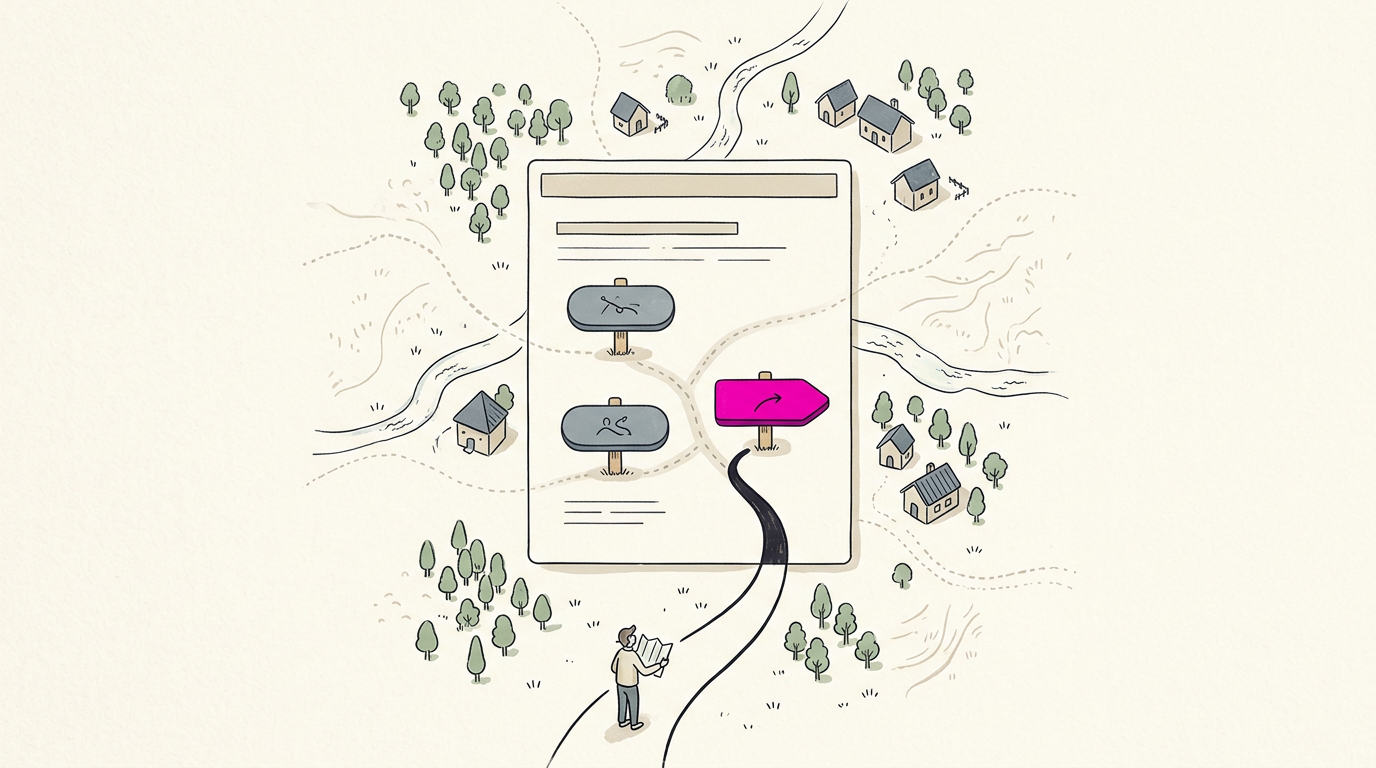
Website buttons are clickable controls that help visitors take a specific action, such as calling, booking, or submitting a form. Give each screen one prominent action, use short labels that explain what happens, and make secondary choices quieter; place buttons where people need them and make them easy to see, tap, and use with a keyboard or screen reader. Clear, consistent buttons reduce guesswork and help visitors complete the next step.
Think about a door with a clear handle. You know right away whether to push or pull, and you don’t have to think about it.
A website button works the same way: it’s a clickable box or shape that tells a visitor exactly what to do next, like calling you, booking a table, or getting directions.
Vague buttons make people hunt, and most won’t bother. In this post, we’ll cover button types, labels, placement, and how buttons look, respond, and work for everyone. We’ll also show which ones earn calls and bookings.
What Are the Types of Website Buttons?
A website button is a clickable element that triggers one action, like calling your shop. Common names include call-to-action (CTA) for a next-step button, “submit” for a form sender, and “toggle” for an on-off switch.
Ranking button styles by emphasis
We’ll sort the styles quietest to boldest:
- Text buttons are plain words, like “See hours.”
- Outlined buttons add a border.
- Tonal buttons use a soft, tinted fill.
- Elevated buttons add a lifting shadow.
- Filled buttons use a solid color block for the most emphasis.
A floating action button stays on screen as visitors scroll, suited to one key action. A toggle button group keeps one option selected, like “Day / Week / Month.”
A dental office might pair a filled “Book now” with an outlined “Call us,” so booking gets noticed first. Filled buttons ask for a click, while text links only offer one.
Changing a button’s color and style
Default is your base color, secondary is muted for supporting actions, and accent is bright for one key action. Use accents sparingly. An outline style has only a border, while an inverse style flips to a light label on dark.
A big button variant is easier to tap with a thumb. An unstyled link-like button looks like plain text, so give it a clear verb.
Picking primary and secondary roles
Every page needs one primary action, the main thing you want visitors to do. A secondary action is a reasonable alternative, and a tertiary action is a low-stakes extra like “Learn more.”
A restaurant might pair a primary “Reserve a table” with a secondary “Call us,” so guests know where to tap.
A destructive button removes or cancels something, usually in red. A disabled button is greyed out and can’t be clicked, so explain why nearby.
Look at Gusto’s website for a real-world model: which button draws your eye first, and is it the main action? Quick pick: for most local businesses, start with call, booking, and directions buttons.
What every button is made of
Every button has up to four parts:
- Text label (required): the words saying what happens, like “Book a visit.”
- Container (optional): the box or border around the label.
- Icon (optional): a small symbol, like a phone, that supports the words.
- Label fits container: the words shouldn’t wrap awkwardly or get cut off on a phone.
Vague labels waste the click.
Making the Main Action Stand Out
Every screen should have one job, and its main button should be the first thing a visitor notices. Here’s how to get there.
Give each screen one main action
Every page needs one primary button, the most prominent one, pointing toward a call or booking. Picture a dental office’s booking page. If ‘Book a cleaning’ is big and bold, patients know their next step and book.
Beside ‘Learn more’ at the same weight, it gets lost.
Avoid two primary buttons side by side, since equal buttons split attention. Audible’s cancel page is a useful model here: it’s built around one clear next step, not a row of equal choices. One clear path wins.
Limit total buttons too. A screen with a dozen buttons asks visitors to sort through a dozen decisions, so cut extras and combine similar ones.
Making less important actions quieter
Secondary actions still matter, but they shouldn’t look like the main event. Give them outline buttons (a border with no solid fill) or a lighter fill, so they stay visible yet calmer.
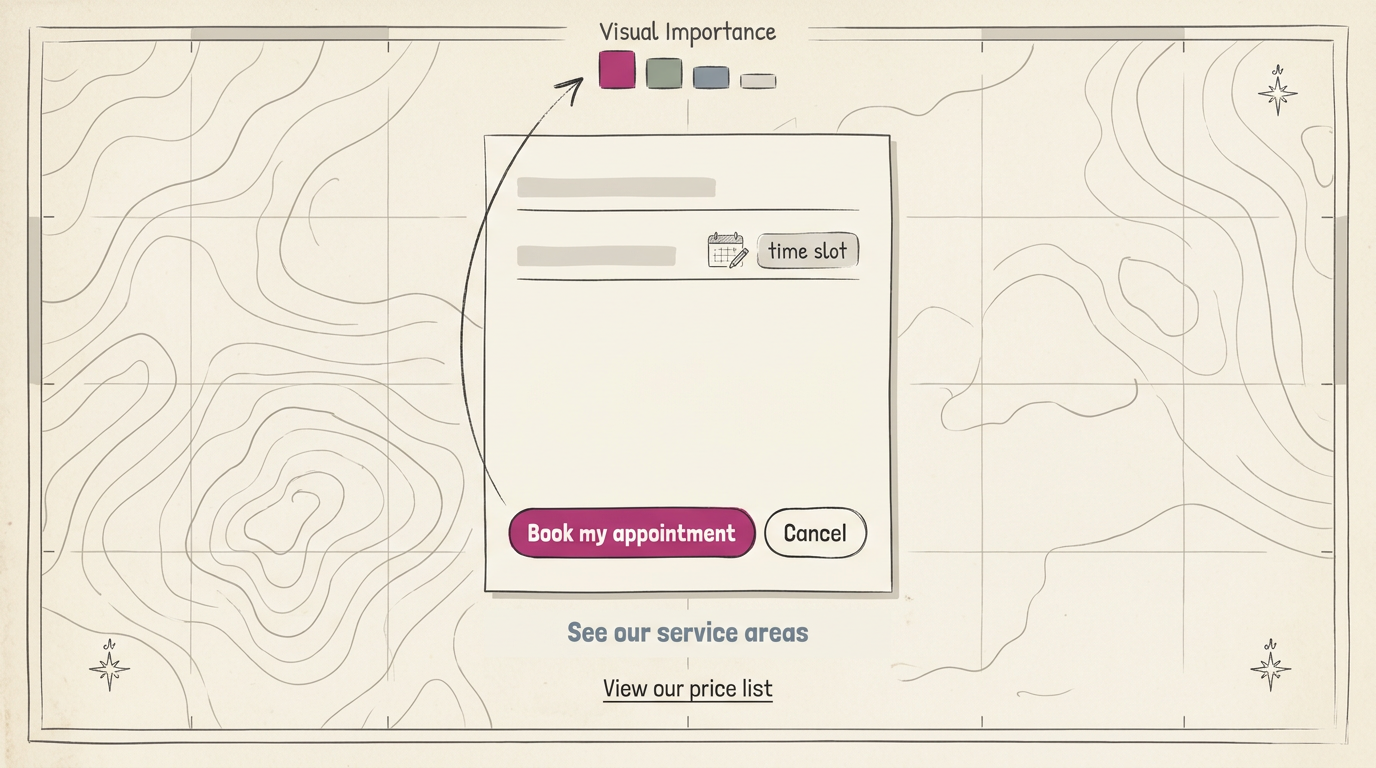
For the lowest priorities, use a text button: plain colored text with no box, so it reads as an option, not a command. A plumber might pair a solid ‘Call now’ with a text button reading ‘See our service areas.’
Some actions don’t need button styling at all. Plain links, like ‘View our price list,’ keep them out of the main decision.
Pairing ties it together. Put emphasis levels in a button bar, the row at the bottom of a form, with one primary button and one quieter option. A salon’s booking form might show a solid ‘Book my appointment’ beside an outlined ‘Cancel.’
It’s less about hiding options and more about ranking them.
Writing Labels That Tell People What Happens
A button’s label is its promise, so we want it to tell people exactly what happens when they tap. Get that right and visitors know what they’re clicking before they click.
Keep button text short and specific
Aim for one to three words so the label fits on a single line, even on a phone. Avoid vague words like Submit, which leaves people guessing what they’re agreeing to. Keep it concise and specific: Book a cleaning says more than Submit ever could.
Start labels with a clear action verb
Lead with a verb and say what happens next. Match the button to the moment, and keep the language plain, with no jargon. Here are local examples by goal:
- Calls: Call now
- Bookings: Book online
- Directions: Get directions
Consider a salon owner whose service menu has a Learn more button. Swapping it for Book online tells visitors exactly where the click leads. Describe the result, not just the action. Clarity wins.
Spell out what destructive buttons do
A destructive button removes something, like a file, an order, or a customer record, so it deserves extra care. Name the consequence in the label. Delete customer record is far clearer than OK.
For anything permanent, require a typed DELETE before the final button works, so one stray click can’t wipe out information. Offer an undo option wherever you can, so a mistake can be fixed rather than locked in.
Think of a plumber whose invoice list has a Clear all button one tap away. Relabeling it Delete all invoices for this month and requiring a typed DELETE means one careless tap can’t erase a month of records.
Choosing between sentence case and caps
Use sentence case for most labels, capitalizing only the first word, as in Book online. It reads like everyday language and fits the rest of your page.
Some designs default to all caps, like BOOK ONLINE, and that works as long as the button still stands apart from the text around it.
Whichever style you pick, keep it consistent across the site, and let color, shape, or spacing set the button apart from its surroundings.
Color, Contrast and How Buttons Respond
Color tells visitors what a button does before they read a word. Here’s how to give each one a job.
Giving each button color a purpose
Color should signal purpose rather than decoration. Your primary button gets your brand color, like a bold blue “Book a Tune-Up” at an auto shop. A secondary button, such as “Get Directions,” stays neutral.
Reserve red for destructive actions like “Cancel Appointment,” and give disabled buttons a muted look.
Test two versions with A/B testing, showing each to different visitors, then check click tracking to see which one gets more taps.
Making labels and edges easy to see
Text needs enough contrast against the button’s background to read in bright sunlight. A contrast checker tool tells you whether two colors are readable, so test each pairing before you publish.
Your button should also stand out from its container, the card or panel behind it, or it may not look clickable.
Text over images is the trickiest case. A dental office’s “Book Online” label sits on a busy waiting-room photo, and patients on a phone can barely read it. Give it a solid background so the next patient can book without squinting.
Showing hover, focus, and pressed states
A button’s states are its different looks:
- Hover: the cursor rests on it.
- Focus: a keyboard user has landed on it.
- Active: it’s being pressed.
- Disabled: it’s unavailable right now.
Keep the focus state visible, an outline or highlight, so keyboard users always know where they are. Pressed buttons should respond right away, with a slight darkening or a small lift called elevation. A tap should never feel like a guess.
Many modern systems use an overlay, a semi-transparent layer on top of the base color. A Medium article on state layers explains that the base color stays unchanged.
Ask your developer to set the overlay’s opacity, or how see-through it is, so every state looks consistent.
Sizing and Spacing for Easy Tapping
A button that’s hard to tap is a call that never happens. Here’s how we’ll size and space yours.
Making buttons big enough to tap
A touch target is the area a finger can press. SUSATest’s target size guide says it should measure 44 x 44 pixels, and that includes icon buttons. Keep the icon small, but pad its tappable area to the full 44.
A plumber’s Call Now icon hides in a corner, so a customer with a leak at 9pm misses it twice and books someone else. Size also signals hierarchy, or which action matters most.
Make your call or booking button bigger than the directions link, not just brighter. Size does some of the selling.
Adding room inside and between buttons
Padding is the room inside a button around its label, and it makes the tap zone (the area that responds to a touch) generous.
Per one button design guide, Material Design specifies 16 dp (density-independent pixels) of horizontal padding and 10 dp of vertical padding for filled buttons.
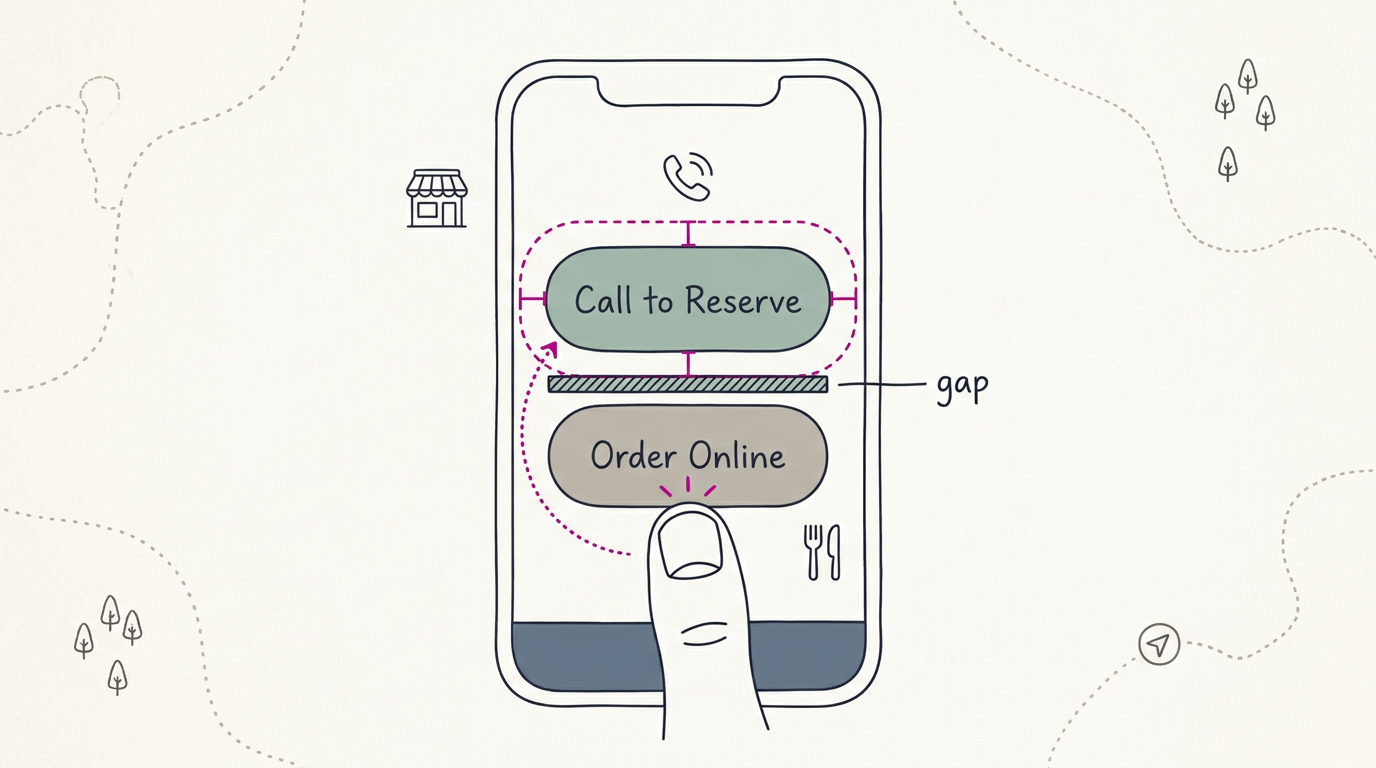
Margin is the gap between buttons, not the room inside them. Stack Call to Reserve and Order Online too close, and a diner aiming for the phone button taps the order link instead, and the call never happens.
Finally, size the container to its label, so Book Now sits neatly in its box.
Specific sizes and corner measurements
IT Influentials’ summary of Apple’s design guidelines gives you numbers to build from, in points (pt):
- Minimum width and height: the summary lists both, with a 44pt minimum height for a primary filled button, the same 44 as the web target above.
- Corner radius: 12pt for buttons, 8pt for small elements, 16pt for cards and panels, and 20pt for large containers.
- Big-button variant: the summary lists one, so save it for the single action you most want tapped, like Book Now.
Where to Place Buttons on the Page
Placement decides whether a button gets tapped or ignored.
Where buttons belong in common layouts
Put the main button at the end of the task, not at the top of the page. On a dental office’s booking form, that’s the “Request appointment” button below the last field.
When two buttons sit together, the primary action (the one you most want tapped) goes on the right, with the secondary choice, like “Cancel,” on the left.
Dialogs, the pop-up boxes that ask for confirmation, right-align their text buttons. Cards and forms follow the same rule.
Keeping calls to action close by
A call to action (CTA) is the button that tells someone what to do next, like calling or booking. Keep it near the task it supports, and avoid disconnected buttons, like a “Book now” link stranded at the bottom of a long page.
On mobile, a sticky button pinned to the bottom of the screen stays in view as the reader scrolls, and a sticky tap-to-call version dials your number with one touch. Put two options side by side, not stacked, so they’re easy to compare.
Think of a plumber whose customer lands on the services page at 9pm with a leak. The sticky “Call now” button stays pinned as they read, so one tap reaches you. That’s it.
How buttons adjust on different screens
Align buttons left, right, or center to match the text around them. Let them scale with their parent container so they don’t shrink into hard-to-tap targets. Keep the icon and label grouped so they never separate.
A responsive layout grid (columns that rearrange to fit the screen) lets two buttons sit side by side on a tablet and stack on a phone. Your phone is the real test.
Using Icons and Ready-made Button Graphics
Icons can speed up a button, but only when they support the words.
When icons help a button make sense
A small picture beside the words helps a button make sense at a glance. Think of a plumber whose Call button pairs a phone icon with “Call now.” Someone with a leak at 9pm can spot it without hunting.
Icons work best alongside words, not instead of them. Four rules keep them clear:
- Icons clarify actions. Use one only when it shows what the button does: a phone for call, a calendar for book, a map pin for directions.
- Set the icon gap. Leave a small, even space between the icon and the label so they read as one unit.
- Don’t use two icons. An icon on each side makes the eye work harder. Pick one.
- Icon-only buttons need recognizability. Drop the words only when nearly everyone knows the picture on sight, and add a text label for screen readers.
Downloading ready-made button icon sets
You don’t need to draw your own. A ready-made icon set covers common actions: a save icon (a floppy disk), a send icon (a paper plane), and a menu icon (three stacked lines).
Many sets come as SVG files or base64 code. SVG, short for Scalable Vector Graphics, stays sharp at any screen size. Base64 turns an image into a string of text that sits inside your page code, so there’s no separate file to load.
Free sets are a fine start, but some require credit or limit commercial use, which matters for a business site. A paid set may offer more styles or broader terms. Either way, read the license before the icon goes live.
When to Use a Button or a Link
Buttons and links often look alike, but they don’t do the same job. Knowing which one to use tells visitors what happens before they click.
Buttons do things, links go places
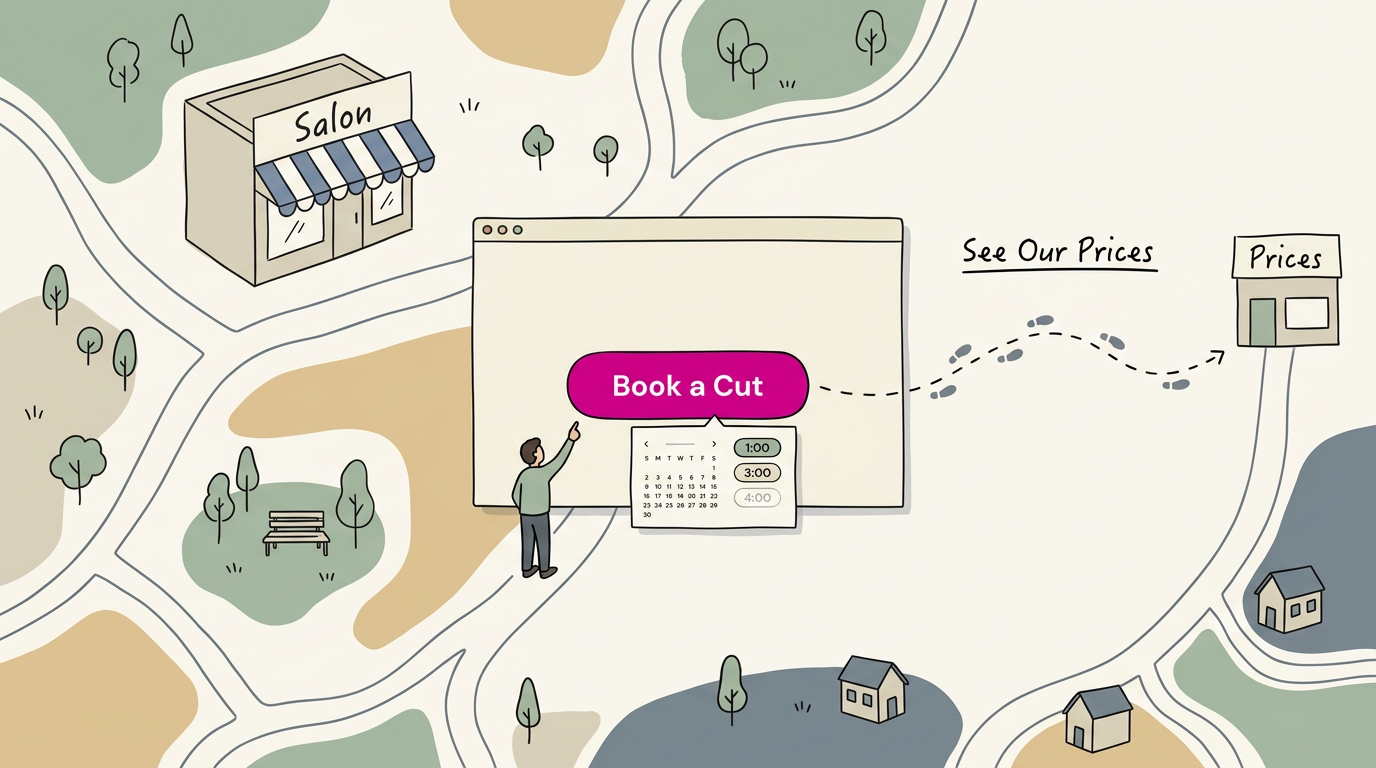
A button does something right where it sits, like submitting a form or opening a booking window. A link takes visitors somewhere else. The difference is action versus destination.
Consider a salon’s website. “Book a Cut” should be a button, since it opens the form on the same screen. “See Our Prices” should be a link, since it opens a new page. Visitors expect exactly that.
Avoid styling them identically. If both look the same, visitors can’t tell which click will keep them on the page and which will take them away. Give buttons a distinct, solid look and let text links look like links.
Use links between pages for menus, “Back to Services” text, and footer links. Save buttons for the one action you want most.
Making a link look like a button
Sometimes you’ll want a link to match your buttons. Most site builders let you add a button class to a link, so it takes on the shape and color of a real one.
Looks can be borrowed. Behavior can’t. Screen readers, the tools some visitors use to hear a page read aloud, announce a link as a link and a button as a button. A visitor may hear “link” when they expected something to happen.
Keyboard users notice too. A button responds to both the Enter key and the Space bar, while a link typically responds only to Enter.
A plumber’s “Call Now” link styled as a button may confuse a keyboard user who presses Space expecting a response, and that’s a frustrating moment for someone ready to call.
Keeping Buttons Consistent and On-brand
Buttons work best when they look and behave the same everywhere. Here’s how to keep them consistent, then make them yours.
Keeping styles the same on every screen
A customer who taps “Book Now” on your homepage should find that same button on your booking page, in the same color and shape, without stopping to wonder. Consistency builds trust.
- Same style across screens. Each button type looks identical on every page.
- Consistent shape, font, and padding. Match corners, lettering, and spacing so buttons feel like one family.
- Avoid one-off styles. A special purple button for one promotion makes customers wonder whether it does something different.
- Reuse a design system. A design system is a shared kit of styling rules and parts, so new buttons start from the same pieces.
Think of a plumbing company whose homepage and quote form share one green “Call Now” button. A customer with a leak at 9pm finds it in seconds.
Shaping buttons to match your brand
Your brand is the look, feel, and personality you show people. Your buttons should borrow from it instead of using plain default styling.
- Custom color. Use your main brand color for Call or Book, and a quieter shade for secondary actions.
- Typography. Use your heading font, with short labels that read at a glance.
- Shape. Choose rounded or cut (angled) corners to match your site.
Rounded corners feel friendly, while cut corners feel crisp and direct. Either works if it matches the rest of your site.
A salon’s app might use soft pastels with rounded buttons, while an auto shop uses bold, square ones. Your brand shapes how your buttons look, not whether customers can find them.
Building Buttons That Everyone Can Use
A button that works only with a mouse shuts out keyboard and screen reader users, so let’s fix that.
Using the right HTML for buttons
Use the standard button element from HyperText Markup Language (HTML, the code behind web pages). It’s focusable and responds to Enter and Space. Avoid div or span tags, which need extra code to act like buttons.
Set the type attribute:
- submit sends the form. Inside a form it’s the default, so a menu toggle can submit a booking by accident.
- button does nothing by itself, so it’s for scripts like opening a menu.
- reset clears the form’s fields.
Making unavailable buttons accessible
The disabled attribute blocks clicks and removes the button from the tab order.
The aria-disabled="true" attribute, from Accessible Rich Internet Applications (ARIA, attributes that describe controls to assistive technology), tells screen readers the button is unavailable.
Where disabled hides it from keyboard users, aria-disabled keeps it in the tab order.
Because aria-disabled doesn’t block clicks, your script must check the button’s state and stop the action. Show the reason right beside the button.
A patient on a screen reader who hears only “Book appointment, unavailable” can’t tell what’s missing. “Pick a date to continue” fixes that.
Checking buttons against WCAG 2.1 AA
Web Content Accessibility Guidelines (WCAG) set the standards for making web content usable by people with disabilities. Aim for version 2.1 at Level AA, the middle of three conformance levels.
Test your own buttons:
- Press Tab through the page. Each button should show a visible focus ring and respond to Enter or Space.
- Test in forced colors mode, which can make a background-only button vanish. Microsoft’s guidelines for Office add-ins call for checking all four built-in contrast themes: Aquatic, Desert, Dusk, and Night sky.
Buttons are small, but they carry a lot of weight. A clear label, a main action that stands out, and a spot where people expect it can turn a browser into a caller or a booking.
Start with the one button that matters most this week, whether that’s call, book, or directions, and make sure every visitor can use it. Your site gets people to the door. The right button gets them to pick up the phone.
References
- WCAG 2.5.5 Target Size — Testing Guide for Mobile and Web — susatest.com (2026)
- Button Design: States, Sizes, Hierarchy, and Touch Target… — anonymous.com.sg (2026)
- Apple Human Interface Design System — it-influentials.com (2026)
- Medium — designsystemscollective.com (2026)
- Accessibility guidelines for Office Add-ins - Office Add-ins — learn.microsoft.com
Questions
What are buttons on a website?
Buttons on a website are clickable elements that trigger an action, such as submitting a form, opening a booking window, or calling a business. Clear labels tell visitors what will happen when they click or tap.
What are buttons on websites called?
Website buttons are commonly called buttons or call-to-action (CTA) buttons when they prompt visitors to take a next step. Specific types may also be called submit buttons, toggle buttons, or floating action buttons.
Sources
- WCAG 2.5.5 Target Size — Testing Guide for Mobile and Web | SUSATest, susatest.com,
- Button Design: States, Sizes, Hierarchy, and Touch Target…, anonymous.com.sg,
- Accessibility guidelines for Office Add-ins - Office Add-ins | Microsoft Learn, learn.microsoft.com
- Apple Human Interface Design System - IT Influentials, it-influentials.com,
- Medium, designsystemscollective.com,