ADA Website Compliance: What It Means and How to Meet It
Website ADA compliance starts with WCAG. See which accessibility fixes to prioritize, how to test your site, and what legal risks noncompliance can bring.

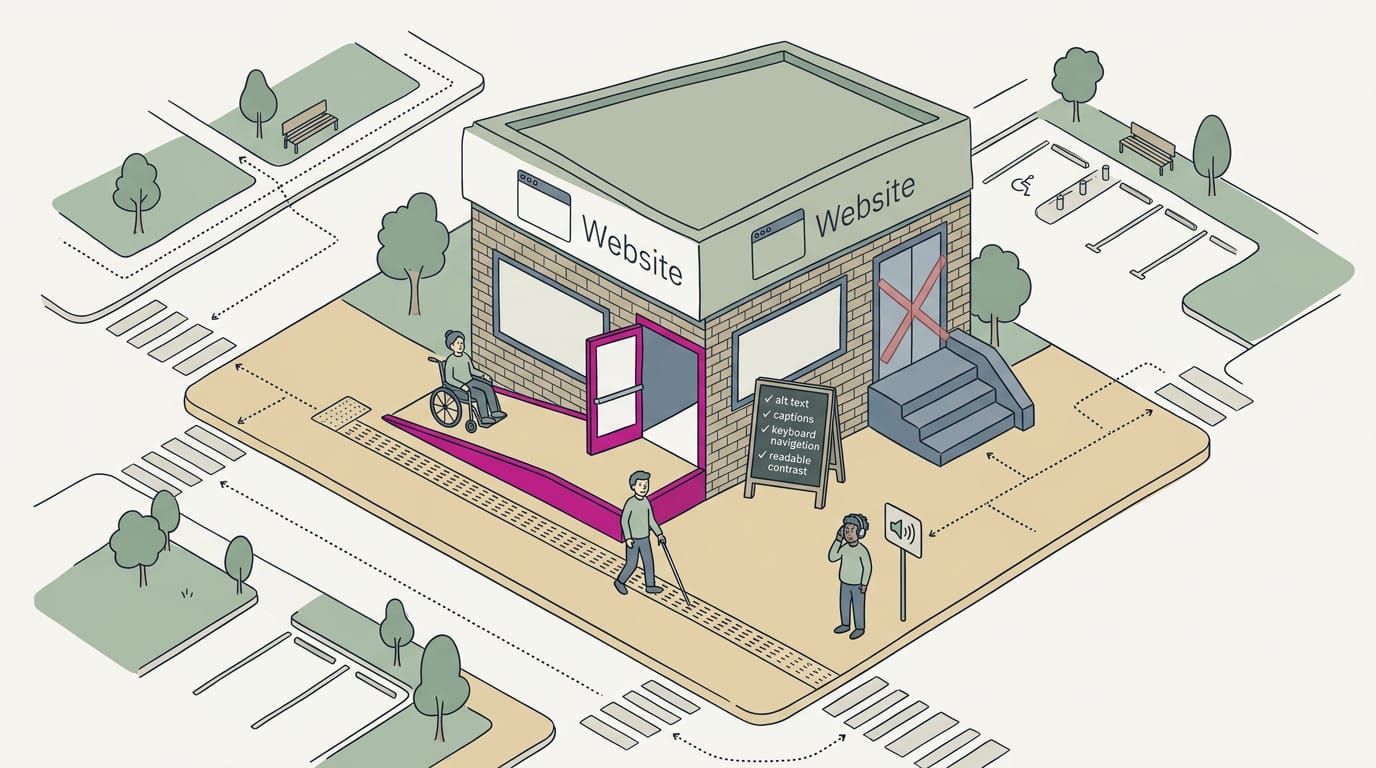
ADA website compliance means making a site usable by people with disabilities, though the specific rules depend on the organization and its legal obligations. In practice, use WCAG as a benchmark: make content perceivable, navigation operable, information understandable, and the site compatible with assistive technology, then combine automated scans with manual and user testing. Prioritize key pages and forms, fix barriers, and keep checking as the site changes so more visitors can use it and complete tasks.
Think of your website as the front door of your shop. If someone can’t get through it, they never reach the counter. For people with disabilities, a hard-to-use site can be just as locked.
That’s where the Americans with Disabilities Act (ADA) comes in, and the usual yardstick for measuring a site is the Web Content Accessibility Guidelines (WCAG).
In this post, we’ll explain what the ADA asks of websites, how WCAG works, and how to fix, test, and document compliance. Then we’ll show you how to check a builder-made site and fix what matters first.
What ADA Compliance Means for Your Website
You’ve probably heard the Americans with Disabilities Act (ADA) covers websites, but the answer depends on who you are. Here’s how it reaches the web.
How the 1990 ADA reaches online spaces
According to a brief overview from Demand Our Access, the ADA is a civil rights law enacted in 1990 and organized into Titles I through V. Originally, it focused on physical spaces like buildings.
Over time, it extended to digital spaces, including your website.
What private businesses must do online
If you run a shop, clinic, or restaurant open to the public, the law calls you a public accommodation. The ADA doesn’t spell out website rules line by line. Courts and the Justice Department have interpreted it over time, and you may see the case *Gil v.
Winn-Dixie* cited as a precedent. In practice, the standard is reasonable accessibility: can a customer with a disability use what you built?
Take a family-owned tire shop whose owner built the site with a drag-and-drop builder. A customer using a screen reader (software that reads the page aloud) can’t get through the booking form.
The question isn’t which builder he used but whether customers can use the result. Start with that form.
Government sites and the 2024 rule deadlines
According to NC State’s federal accessibility summary, the Department of Justice (DOJ) issued a final rule in April 2024 under Title II, covering web content and mobile apps at state and local governments.
The rule points to Web Content Accessibility Guidelines (WCAG) 2.1 Level AA, and Accessible.org notes that covered sites must conform to it, subject to the rule’s exceptions.
Deadlines are population-based: ADA.gov’s first-steps guide says the deadline generally depends on the population of your state or local government.
This rule doesn’t apply to private businesses directly, but WCAG is the benchmark we’ll keep coming back to.
Employers with 15 or more staff
Once you have 15 or more employees, the ADA’s employment rules apply to you. They overlap with the equal employment opportunity (EEO) laws. Check both.
Other rules that sit alongside the ADA
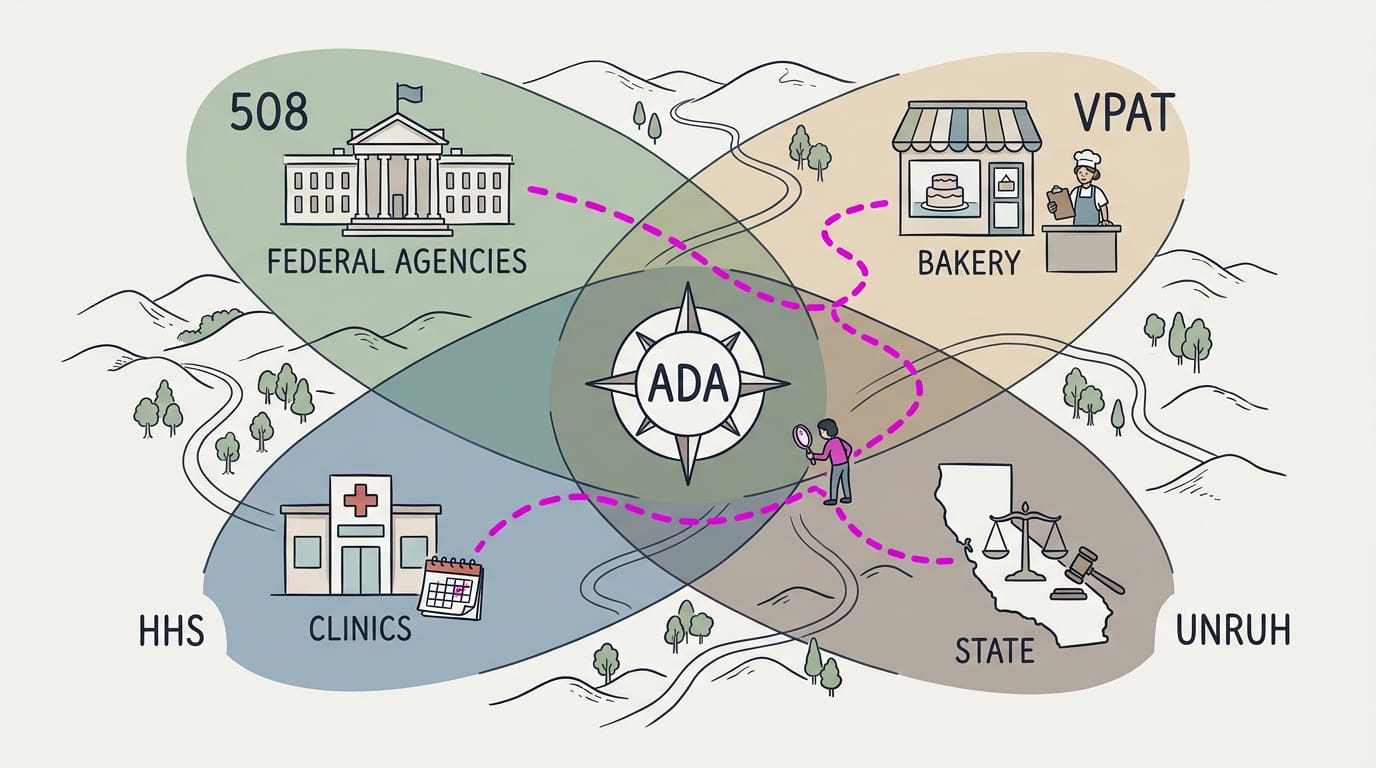
Other rules to know:
- Section 508. These federal requirements govern federal technology, so they matter most if you sell to federal agencies. Don’t confuse them with the Section 504 rule in the healthcare item below, and remember the ADA is a broader civil rights law.
- VPAT (Voluntary Product Accessibility Template). Vendors use this form to document their product’s accessibility. A bakery owner choosing a site builder can ask for its VPAT before signing up.
- Healthcare deadlines. The U.S. Department of Health and Human Services (HHS) set web and mobile accessibility compliance deadlines for covered healthcare entities in a Section 504 rule published May 9, 2024. Clinics should check whether they’re covered.
- State laws. Laws like the Unruh Act, a state civil rights law, can add requirements on top of federal rules. A federal answer isn’t always the whole answer.
Using WCAG as Your Compliance Benchmark
The Web Content Accessibility Guidelines (WCAG) turn “make it accessible” into a target you can measure. Here’s how its parts fit together.
The four core WCAG principles
Each principle describes how your site must work for every visitor:
- Perceivable. Visitors must be able to take in your content, so photos need text descriptions a screen reader can read aloud.
- Operable. Visitors must be able to use every control, including with a keyboard alone.
- Understandable. Content and forms must make sense, with clear labels and plain error messages.
- Robust. Your site must work across browsers and assistive tools.
Consider a dental office with unlabeled booking fields. A screen reader user hears a generic prompt and can’t tell which box wants a phone number, so they give up. Labeling each field takes minutes and keeps that booking on your site.
Which WCAG versions and levels to target
WCAG comes in versions 2.0, 2.1, and 2.2, and each builds on the last. Its requirements sort into three levels:
- Level A covers the most basic barriers.
- Level AA adds the next tier and is the common business target.
- Level AAA is the strictest and isn’t realistic for an entire site.
Aim for AA. It’s the practical target, not the perfect one. Newer versions satisfy older ones, so 2.2 AA covers 2.0 and 2.1 too.
What changed in WCAG 2.2 and beyond
According to a Swedish guide to WCAG for organizations, WCAG 2.2 adds nine success criteria (the specific tests a page must pass) to WCAG 2.1, with a focus on users with disabilities and new technologies.
Our advice: build to 2.2 AA now, so you aren’t starting over when the next version arrives.
WCAG is also an international standard, published through the International Organization for Standardization (ISO). WCAG 3.0 is still in drafting, so watch for it, but build to what exists now.
How WCAG fits into legal requirements
The Americans with Disabilities Act (ADA) sets the obligation, and WCAG is the measuring stick courts often reference. WCAG itself isn’t a legal requirement, so calling your site “WCAG-compliant” doesn’t settle a legal question alone.
Public entities, like state and local governments, face more direct requirements, so confirm what applies to you. For specifics, talk with a qualified attorney.
Legal Risks, Costs and the Upside
(draft failed for this section — re-run)
Steps to Get Your Site Compliant
Getting compliant is a sequence, not a single fix, so here’s the order we’d follow:
Work out which rules apply to you
Start by finding which parts of the Americans with Disabilities Act (ADA) apply to your shop, clinic, or service van. Then review what the ADA requires of websites. If you’re unsure, consult a disability attorney.
Run a full accessibility audit
An accessibility audit is a structured check of your pages. A thorough one combines these parts:
- Third-party expert evaluation. An outside specialist looks at your site with fresh eyes.
- Automated plus manual checks. Software flags obvious problems fast, and a person checking each page catches the rest.
- Testing by users with disabilities. Real people, including screen reader users (software that reads a page aloud), try your key tasks.
- Written remediation report. A to-do list of each problem, its page, and its fix.
An audit shows what is broken and where, not just that something feels off.
Prioritize fixes, starting with busy pages
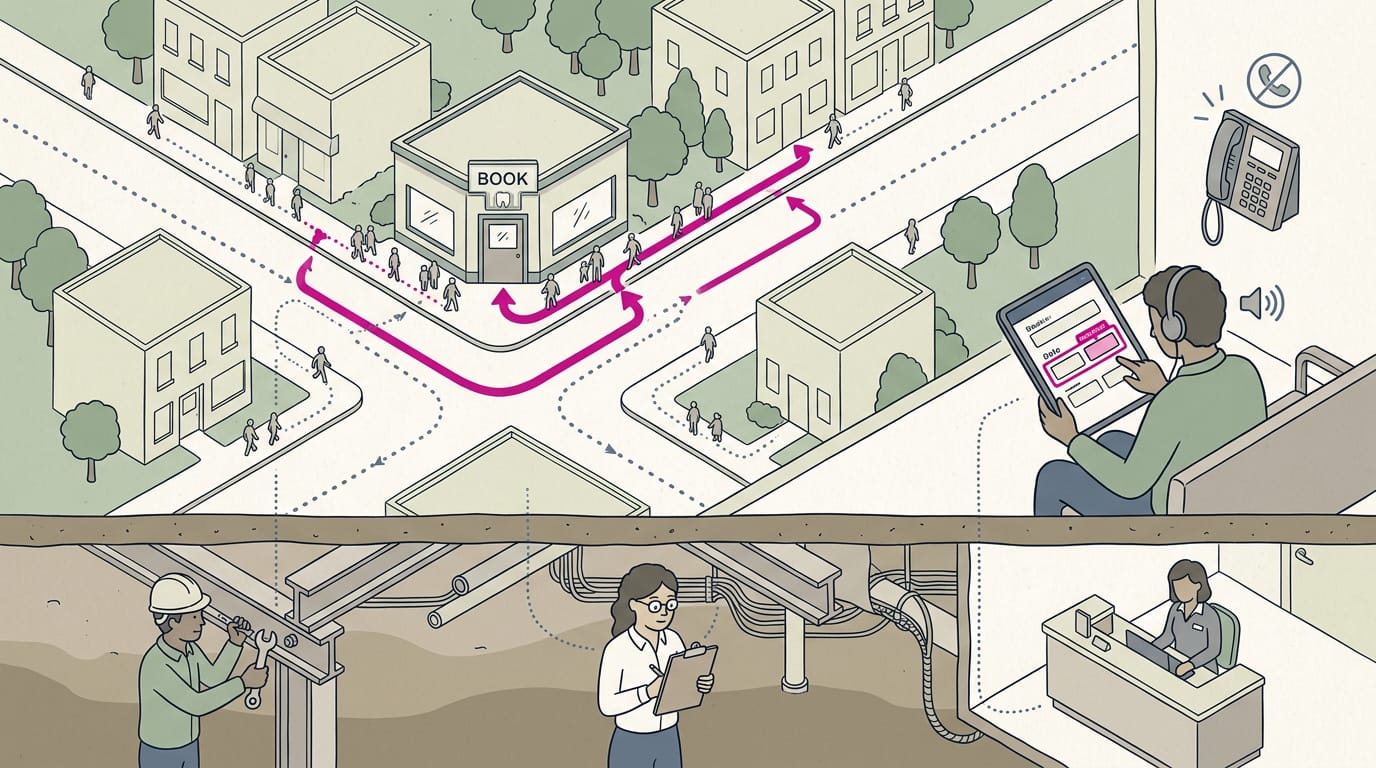
Fix your high-traffic pages first: usually the home page, the contact or booking page, and whatever customers visit most. Front-end changes affect what visitors see, like clear form labels.
Back-end changes sit underneath, like page structure, and may need a developer. Expect several people to be involved, from your web content writer to your front desk.
Consider a dental office whose booking form gives screen reader users no label on the date field. Labeling that one field lets patients book without calling during office hours.
Keeping your site accessible over time
Accessibility doesn’t stay put, since each new photo or page can undo earlier work. Build in these habits:
- Regular automated scans. Run them on a set schedule and after any big update.
- Staff accessibility training. Teach whoever uploads content to write alt text (a short description a screen reader reads for an image).
- User feedback mechanism. Give visitors an easy way to report problems, like a contact email in your footer.
- Accessibility policy. A short written statement of your commitment and how to ask for help.
- Stay updated on guidelines. The Web Content Accessibility Guidelines (WCAG), your site’s benchmark, get revised, so check in now and then.
Choosing tools, consultants or your own team
Before grabbing a quick fix, know each option’s limits:
- Accessibility widgets (overlays) sit on top of your code without fixing it, so real barriers can remain and you may feel covered.
- Monitoring software tracks your site between audits so new problems surface sooner.
- Consultants fix what your report lists, especially below the surface.
- Your own team handles content, but code fixes may exceed its skills.
Automation alone isn’t enough: a scan can flag a missing label but can’t judge whether a link’s wording makes sense. Check your builder’s accessibility support too: ask what its templates include and whether its forms are tested.
Tools find problems. People confirm them. Experts fix what’s underneath.
Common Fixes That Make Sites Accessible
Most of these fixes are small edits, and we’ve grouped them by what visitors actually do.
Making images, video and audio accessible
Every image needs alt text, a short description a screen reader (software that reads a page aloud) can speak. Describe what the picture shows, not its filename.
Videos need captions (on-screen text of spoken words and sounds) and a transcript (the full text in one place). Add:
- audio descriptions, a narrator who describes what’s on screen
- sign language interpretation for recorded messages
Consider a dentist who posts a new patient video. With captions and a transcript, a hard-of-hearing patient can read the steps and arrive with the right forms.
Design choices that help every visitor
- Color contrast: Text should stand out from its background, not blend into it. Pale gray on white fades fast outdoors.
- Readable fonts: Choose plain, common typefaces at a comfortable size.
- Content zooming: Text should stay readable and unbroken when visitors zoom in.
- Avoid flashing content: Drop blinking text and fast-cycling banners, since flashing can harm some visitors.
Letting visitors navigate with a keyboard
Some visitors rely on the Tab key, so get these right:
- Keyboard-operable elements: Every menu, button, and link must work with the Tab and Enter keys.
- Skip navigation links: These hidden links jump past your menu to the main content. Without one, keyboard users tab through the whole menu on every page.
- Consistent organized layout: Keep menus and page structure the same on every page.
- Headings and structure: Use headings in order so screen reader users can jump between sections. Use them for structure, not size.
- Descriptive links: Swap “click here” for “Book a cleaning.”
Making forms and error messages clearer
- Clear labels: Every field needs a visible label, since placeholder text vanishes once someone types.
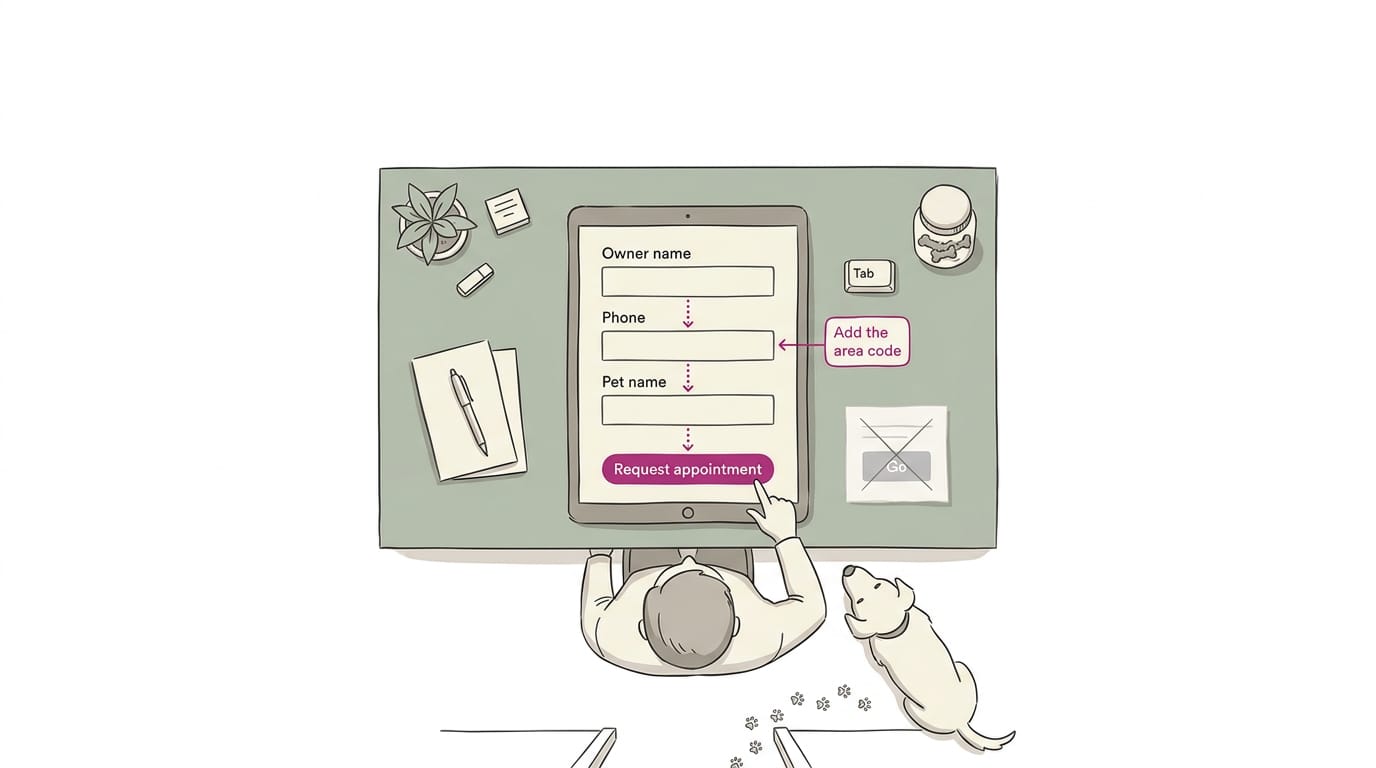
- Error suggestions and prevention: “Add the area code” beats “Invalid entry.” Let people review a booking before it’s sent.
- Input assistance: Mark required fields and use the right field type, so phones show a number pad.
- Accessible button names: Name buttons by what they do, like “Request appointment,” not “Submit.”
- Accessible contact and booking forms: Apply all of this to every form, then test with the Tab key alone.
Picture a vet clinic whose booking button says only “Go.” A pet owner using a screen reader hears “Go” with no context and gives up. Fixing that label takes a minute.
How to check if a document is 508 compliant?
Section 508 is the U.S. federal standard for accessible electronic content. Check your document in five areas:
- Accessible PDFs: A PDF (portable document format) scanned from paper is just a picture of text that screen readers can’t read. Export from the original file instead, with real headings and alt text.
- Page language in header: The page header’s language setting tells screen readers how to pronounce words.
- Compatibility with assistive technology: Assistive technology, such as screen readers and magnifiers, should work with your document without trouble.
- Screen reader support: Listen to the whole document with a built-in screen reader and check the reading order.
- Checking document 508 compliance: Run the file through your word processor’s or PDF editor’s accessibility checker, fix each flag, then listen again.
Writing a public accessibility statement
- Standards followed: Name the standard you’re working toward, such as the Web Content Accessibility Guidelines (WCAG).
- Contact information: Give an email address or phone number for reporting barriers.
- Known exceptions: Be upfront about what isn’t accessible yet and when you’ll fix it.
- Statement generator: An online generator can draft the text, but you’ll still need to make it match your real site.
Ways to Test Accessibility
Each method catches different problems.
Testing the site by hand with experts
An expert or consultant can check your pages by hand:
- Navigation and form checks: A booking form that only works with a mouse shuts out people using assistive technology (software like screen readers).
- Metadata and semantic structure: Page titles and headings tell browsers what each part of a page is.
- Time-consuming: Expert reviews take time, so save them for key pages.
Think of a dental office whose booking form a screen reader can’t read. A patient who gets stuck calls the front desk, or gives up. That’s a lost booking.
Which tool is used for accessibility testing?
No single tool does it all. A scanner is the quickest start, but it shows you where to look, not whether a page works for everyone:
- Faster code scanning: Scanners read your page code and flag likely problems quickly.
- Cannot catch all failures: A scanner can flag a missing image description (alt text) but can’t judge whether it makes sense.
- Findings need review: Some flags are false alarms, so a person checks each one.
- Named free testing tools: Free scanners cover the basics at no cost.
Combining automated, manual and user testing
The best-practice combination layers all three: a scanner, a manual review, then real people.
Focus groups with disabled users let people who rely on assistive technology show you where they get stuck.
Keyboard-only testing checks whether someone can use your site without a mouse. Try this quick self-check on a small site:
- Put your mouse aside and press Tab through your links, buttons, and form fields.
- Watch for a focus outline (the visible box showing where you are).
- Press Enter on a button and check that it does what you expect.
- Note anything you can’t reach or see.
Accessibility doesn’t have to mean starting over. Start with the fixes that matter most, test as you go, and write down what you’ve changed so you can show your progress.
Each improvement opens the door a little wider for customers who have been struggling to get in.
Keep the work manageable and keep it moving, one fix at a time. A website everyone can use is a website that’s open for business.
References
- Federal Digital Accessibility Requirements — accessibility.ncsu.edu (2025)
- HHS’ Office for Civil Rights Extends Web and Mobile Accessibility Compliance Deadline — hhs.gov (2026)
- Riktlinjer för tillgängligt webbinnehåll (WCAG) inom en organisation — urn.kb.se (2025)
- State and Local Governments: First Steps Toward Complying with the Americans with Disabilities Act Title II Web and Mobile Application Accessibility Rule — ada.gov (2026)
- Designing Inclusive Web Applications with Accessibility in Mind — doi.org (2024)
- Discrimination Based on HIV/AIDS and Other Conditions: “Disability” As Defined Under Federal and State Law — scholarship.law.georgetown.edu (2000)
- Brief Overview of the ADA — demandouraccess.com
- Understanding WCAG 2.1 AA for ADA Title II Compliance — accessible.org
- The ADA and Employers — northeastada.org
- 2026 Mid-Year Report: ADA Title III Federal Lawsuit … — legal500.com (2026)
- Research Finds Strong Link Between Digital Accessibility and Business Growth — levelaccess.com (2025)
- How Much Does Accessibility Remediation Cost? — accessibilitybase.com (2026)
- United States District Court — adatitleiii.com
- Federal Court Website Accessibility Lawsuit Filings Bounce Back in 2025 — adatitleiii.com
Questions
What are the ADA accessibility requirements for 2026?
For 2026, public businesses should make websites reasonably accessible, with WCAG Level AA serving as the common benchmark; WCAG 2.2 AA is a practical target. State and local government websites and mobile apps are subject to the DOJ Title II rule’s WCAG 2.1 AA standard, with deadlines depending on the government’s population and exceptions applying. Requirements can also vary by employer status, industry, and state law.
How much to make a website ADA compliant?
The cost depends on the site’s size, the number and severity of accessibility barriers, and whether you need expert remediation or ongoing monitoring. A structured audit and remediation plan can help estimate the work; small fixes may be inexpensive, while complex sites may require substantial developer and specialist time.
How to check if a document is 508 compliant?
Run the document’s built-in accessibility checker in your word processor or PDF editor, then fix its flagged issues. Check that PDFs contain selectable text, headings and image descriptions, confirm the document language and reading order, and test it with a screen reader or other assistive technology.
What happens if a website isn't ADA compliant?
Visitors with disabilities may be unable to use the site, complete forms, or access services. A business may also face complaints, legal action, and costs to remediate the site; applicable risks depend on the organization and the laws that apply.
Which tool is used for accessibility testing?
There is no single tool that fully tests accessibility. Automated scanners such as WAVE, axe, or Lighthouse can flag likely issues, but results need manual review, keyboard and screen-reader testing, and, where possible, feedback from users with disabilities.
Can you be sued if your website is not ADA compliant?
Yes. A business website may be the subject of an ADA lawsuit if people with disabilities cannot access its services, though legal outcomes depend on the facts and jurisdiction. WCAG is a common benchmark, but meeting a technical standard alone does not settle every legal question.
Sources
- Brief Overview of the ADA – Demand Our Access, demandouraccess.com
- United States District Court - ADA Title III, adatitleiii.com
- Federal Digital Accessibility Requirements | Accessibility, accessibility.ncsu.edu,
- Understanding WCAG 2.1 AA for ADA Title II Compliance | Accessible.org, accessible.org
- State and Local Governments: First Steps Toward Complying with the Americans with Disabilities Act Title II Web and Mobile Application Accessibility Rule |, ada.gov,
- The ADA and Employers | The Northeast ADA Center, northeastada.org
- HHS’ Office for Civil Rights Extends Web and Mobile Accessibility Compliance Deadline | HHS.gov, hhs.gov,
- Riktlinjer för tillgängligt webbinnehåll (WCAG) inom en organisation, urn.kb.se,
- 2026 Mid-Year Report: ADA Title III Federal Lawsuit ..., legal500.com,
- Federal Court Website Accessibility Lawsuit Filings Bounce Back in 2025 | ADA Title III, adatitleiii.com
- Discrimination Based on HIV/AIDS and Other Conditions: "Disability" As Defined Under Federal and State Law, scholarship.law.georgetown.edu,
- Designing Inclusive Web Applications with Accessibility in Mind, doi.org,
- Research Finds Strong Link Between Digital Accessibility and Business Growth, levelaccess.com,
- How Much Does Accessibility Remediation Cost? – Accessibility Base, accessibilitybase.com,