How to set up a Google Business Profile, field by field
How to claim or create your free Google Business Profile, verify it, fill in each field the way Google allows, add photos and start asking for reviews.

Search Google Maps for an existing listing, then claim or create your profile at business.google.com, verify it, and fill in the name, category, address or service area, phone and hours exactly as Google’s guidelines ask. Add real photos, send your review link to every customer without offering anything for a review, and judge the profile by the calls and direction requests it brings in.
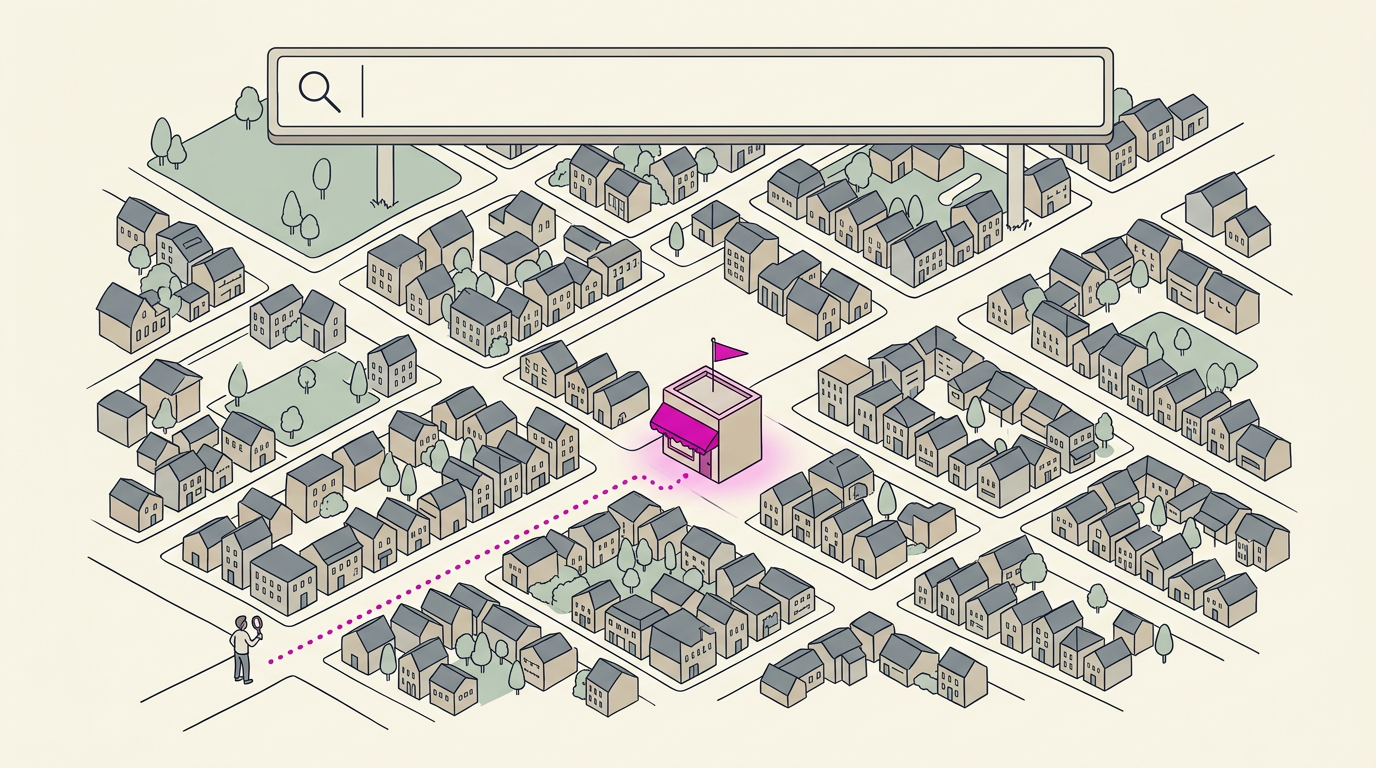
When someone nearby searches for a plumber, a nail salon or a café, Google often shows a map with a few businesses under it before any website, and a customer can call, get directions or open your site straight from that listing. The listing comes from Google Business Profile, which is free and managed at business.google.com. Filling it in takes an afternoon; verification can take a few more days. Here is the order to do it in, field by field, with the rules that keep a profile from being suspended.
Check for an existing profile first
Search Google Maps for your business name and town first. Google may already list you, and its guidelines allow one profile per location.
- If you find a listing that nobody manages, open it and select Claim this business, then Manage now.
- If someone else manages it, such as a former employee or your old web designer, request ownership from them.
- If nothing comes up, create a new profile.
Create the profile and verify it
- Go to business.google.com/add and sign in with the Google Account that should own the profile. Use an account you will keep, not a staff member’s personal one.
- Select Add your business to Google and follow the on-screen steps for your name, category, location, phone number and website.
- Choose a verification method. Google decides which ones you are offered, based on your type of business, region and hours, and you can’t change them. The options include a code by phone, text or email, a video recording, a live video call, and a postcard by mail.
- Wait for the review. Google’s verification help page says it can take up to five business days after you finish the steps, and occasionally longer. A postcard code usually arrives within 14 days and expires after 30.
For a video, film the business itself: the storefront or street sign, your equipment or work van, and proof that you run it, such as unlocking the door or showing an area only staff can enter. A live video call is only available during the business hours on your profile, so set your hours before you book one.
A claimed and verified profile is the first question on the Local Scorecard, because every other fix to the listing depends on it.
Fill in the fields customers read
Everything a customer sees before calling comes from a handful of fields, and Google can suspend a profile that breaks its guidelines on any of them.
| Field | What to enter | What to avoid |
|---|---|---|
| Business name | The name on your sign, website and invoices | Adding your town, your services or a slogan |
| Primary category | The most specific match, such as Nail salon rather than Salon | A category for what you sell rather than what you are |
| Address or service area | A real address with permanent signage, or up to 20 served areas | P.O. boxes, virtual offices, a radius around your base |
| Phone | A local number that reaches this location | Premium-rate numbers or a central call center |
| Website | The page on your own site for this location | A link that redirects elsewhere, including a social page |
Name and category
Use the name on your storefront, website and stationery, and nothing else. “Riverside Plumbing” is a name; “Riverside Plumbing 24/7 Emergency Plumber Denver” puts service and location details into it, which Google’s guidelines forbid.
For categories, Google’s test is whether the category completes the sentence “This business IS a,” not “This business HAS a.” Choose one primary category, then add a few additional ones only for real departments or services, the way a grocery store with a bakery and a deli adds Bakery and Deli. Google’s category help page says the categories you select affect your local ranking, and that changing them later may mean verifying the profile again; how to rank higher on Google Maps covers what else decides where you show up.
Address or service area
If customers come to you, show the address and keep a permanent sign with your business name there. If you go to them, like a plumber who runs the business from home, remove the address and list the areas you serve instead: up to 20 cities, ZIP codes or other areas, within about two hours of driving from your base. A hybrid business, such as a garage that also does roadside callouts, can show both.
Then set your regular hours, and add special hours for holidays before they arrive (Edit profile, then Hours, then Special hours), so nobody drives over to a locked door. Write the description last: up to 750 characters, no links, saying what you do, where and for whom.
Add the photos customers look for
Photos show a customer what they are walking into. Start with these:
- your logo, so the listing matches your sign and your cards;
- a cover photo that shows the business at its best;
- an exterior shot, so people recognize the door when they arrive;
- pictures of the work itself: a finished haircut, a new water heater, the lunch counter.
Google’s photo and video help page accepts JPG or PNG files between 10 KB and 5 MB and recommends 720 by 720 pixels. Shoot in daylight, in focus, with no heavy filters. Videos can run up to 30 seconds.
Ask every customer for a review
Once the profile is live, reviews are the next job. In your profile, select Read Reviews, then Get more reviews, to copy your review link or download a QR code; Google’s help page on review links says the QR code can only be made in a computer browser, not on a phone. Put the link in your thank-you email or text, and print the code where customers wait or pay.
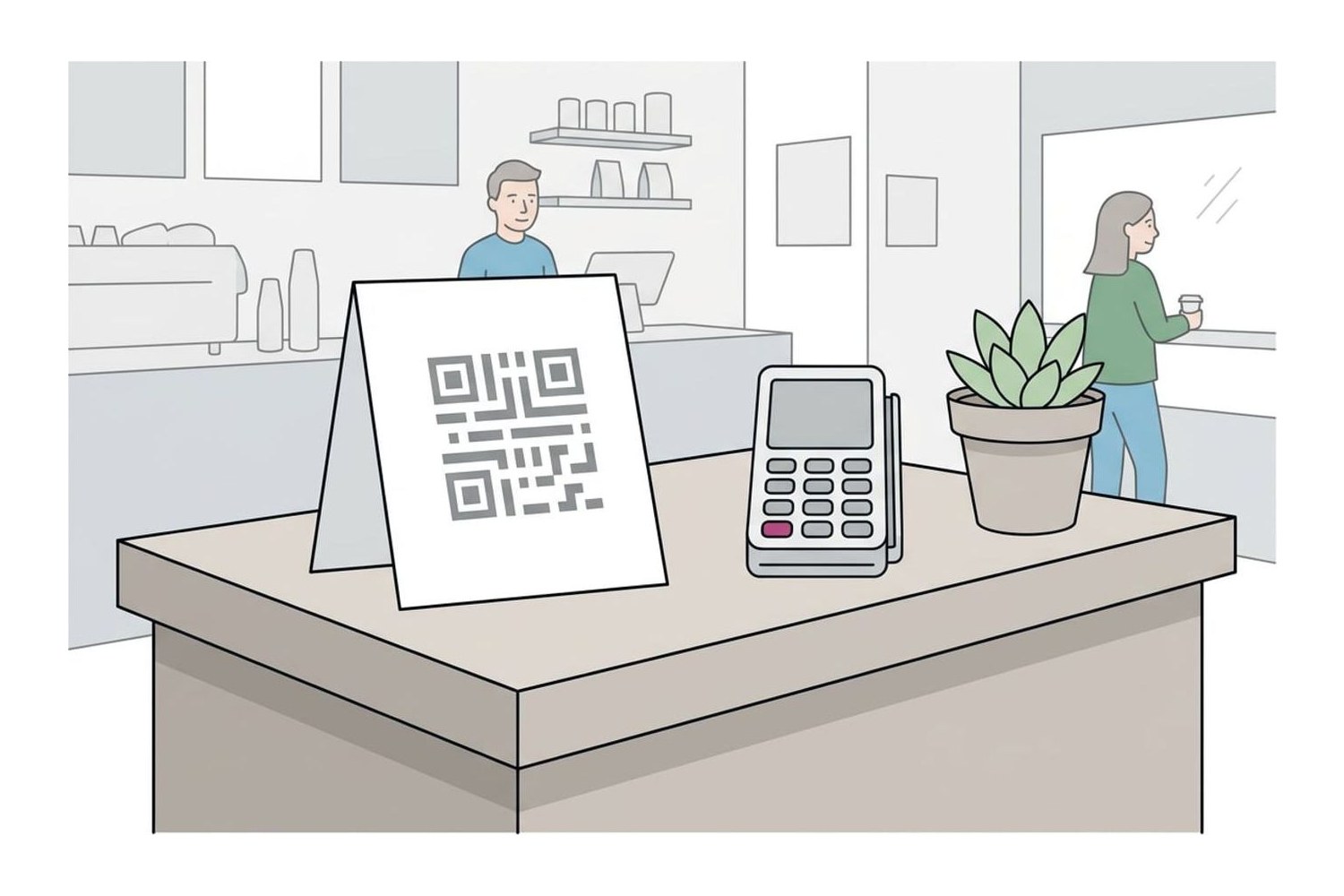
For print, MOO’s QR code business cards carry the code on the front of a card you can hand over with the receipt, and Vistaprint’s table tents stand on a counter or a table at 5 by 7 inches. Both are on the Tools page, alongside Google Business Profile itself.
Two rules apply from the first request. Send the link to every customer, not only the ones you think were happy: Google forbids selectively asking for positive reviews. And offer nothing in return: Google’s policy bans payment, discounts and free goods or services for a review, which is stricter than the Federal Trade Commission’s Consumer Reviews and Testimonials Rule. Our guide to asking customers for Google reviews has the words to use, texts to copy and the three sets of rules side by side, and how to respond to negative reviews covers the replies.
Watch calls and direction requests
The Performance page shows what the listing brings in. At business.google.com, select Performance and choose a date range; in the Google Maps app, tap Business, then See more next to Performance. Google’s performance help page explains each number. Read three first: calls (taps on your call button, counted only when your phone number is on the profile), direction requests and website clicks. Views show reach, not customers. Searches lists the words people used to find you.
Look once a month, and a few weeks after any change, so you know which fixes earned their place; check that the hours, phone number and photos are still right while you are there. The rest of the Local SEO guides cover the other listings and what moves you up the map results.
Questions
Does a Google Business Profile cost anything?
No. Creating, verifying and managing a Business Profile is free. Google Ads and Local Services Ads are separate products you pay for, and you do not need either to have a profile.
Can I have a profile if I work from home?
Yes. If customers do not come to you, set it up as a service-area business: remove the address from the profile and list up to 20 cities, ZIP codes or other areas you serve, within about two hours of driving from your base. P.O. boxes and virtual offices do not qualify.
Can I offer a discount for a Google review?
Not on Google. Its policy forbids offering payment, discounts or free goods or services in exchange for a review, even when the customer may say anything they like. The FTC rule allows incentives that do not depend on what the review says, but Google’s own policy is stricter, and it removes reviews that break it.
Sources
- Add or claim your Business Profile, Google Business Profile Help
- Verify your business on Google, Google Business Profile Help
- Guidelines for representing your business on Google, Google Business Profile Help
- Manage your business category, Google Business Profile Help
- Manage your service areas for service-area & hybrid businesses, Google Business Profile Help
- Edit your Business Profile, Google Business Profile Help
- Manage your Business Profile photos & videos, Google Business Profile Help
- Create a Google link or QR code to request reviews, Google Business Profile Help
- Understand your Business Profile performance & insights, Google Business Profile Help
- Prohibited & restricted content, Maps User Generated Content Policy Help
- The Consumer Reviews and Testimonials Rule: Questions and Answers, Federal Trade Commission