Why Is My Website Not Showing Up on Google and How to Fix It
Why is my website not showing up on Google? Check indexing, page relevance, links, and penalties, then see if your map listing is the issue.

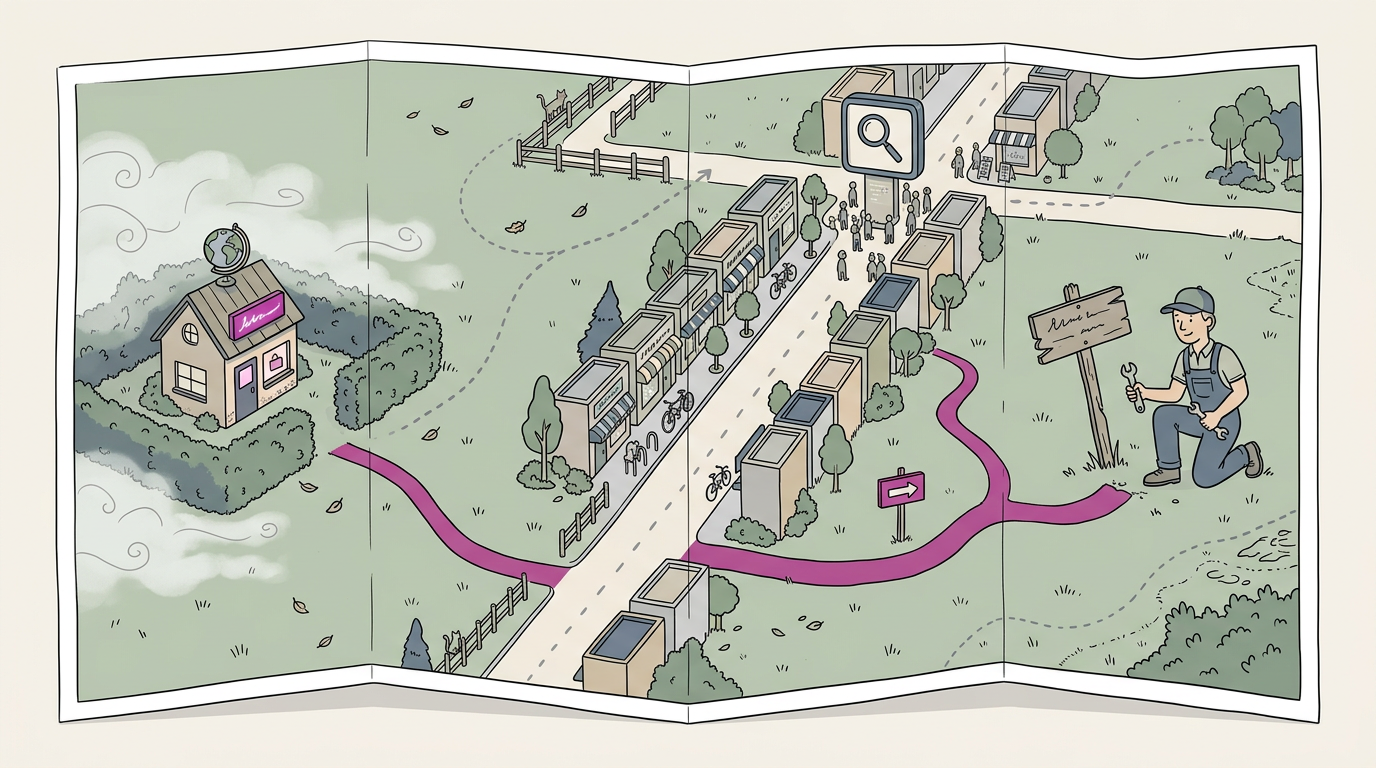
A website may not show up on Google because its pages have not been indexed, are blocked or difficult to crawl, or do not match what people search for. Check indexing, errors, security alerts and your business listing in Google Search Console, then improve page content, site usability and relevant links. Fixing the cause helps Google find your pages and helps nearby customers find your business in search and maps.
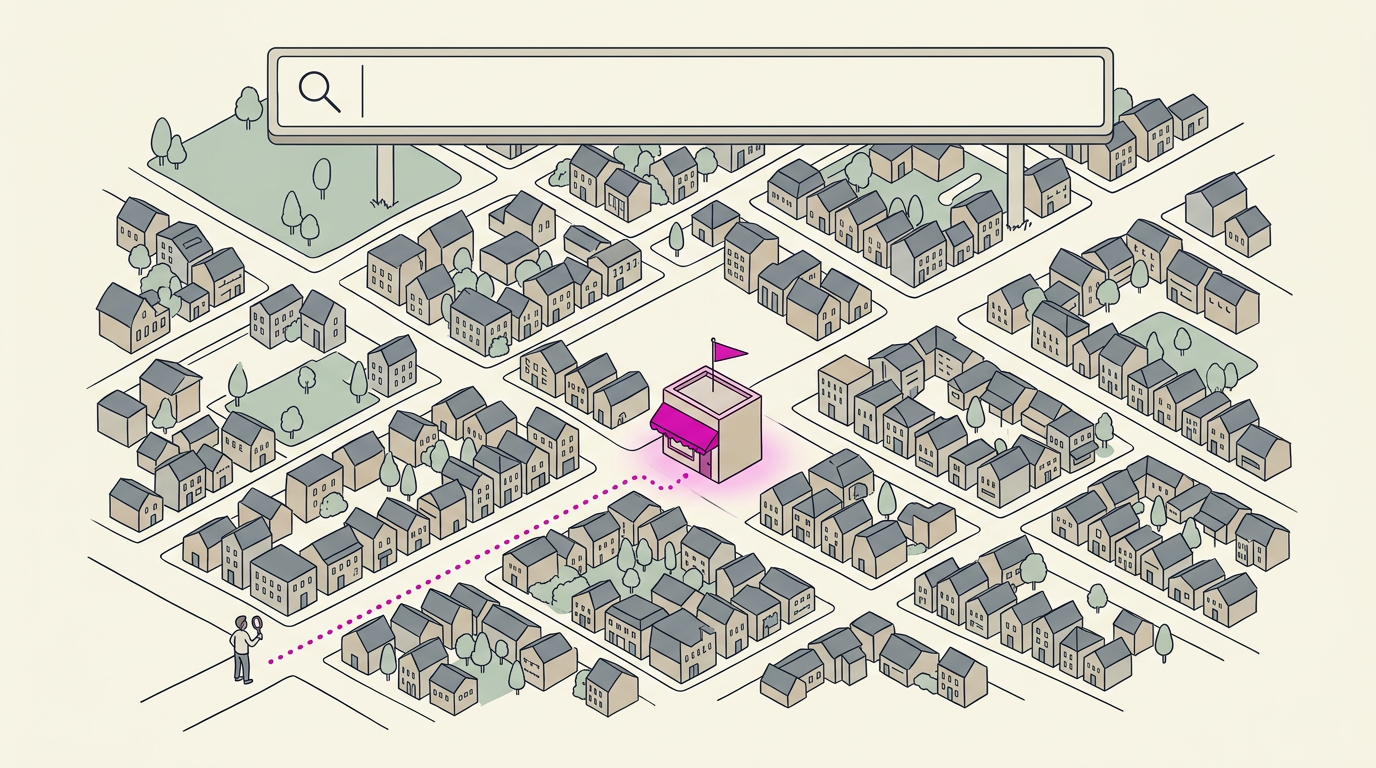
Picture someone outside your shop at lunchtime, typing ‘tacos near me’ into their phone. You know you’re open and serve great food, but your name never shows up on their screen.
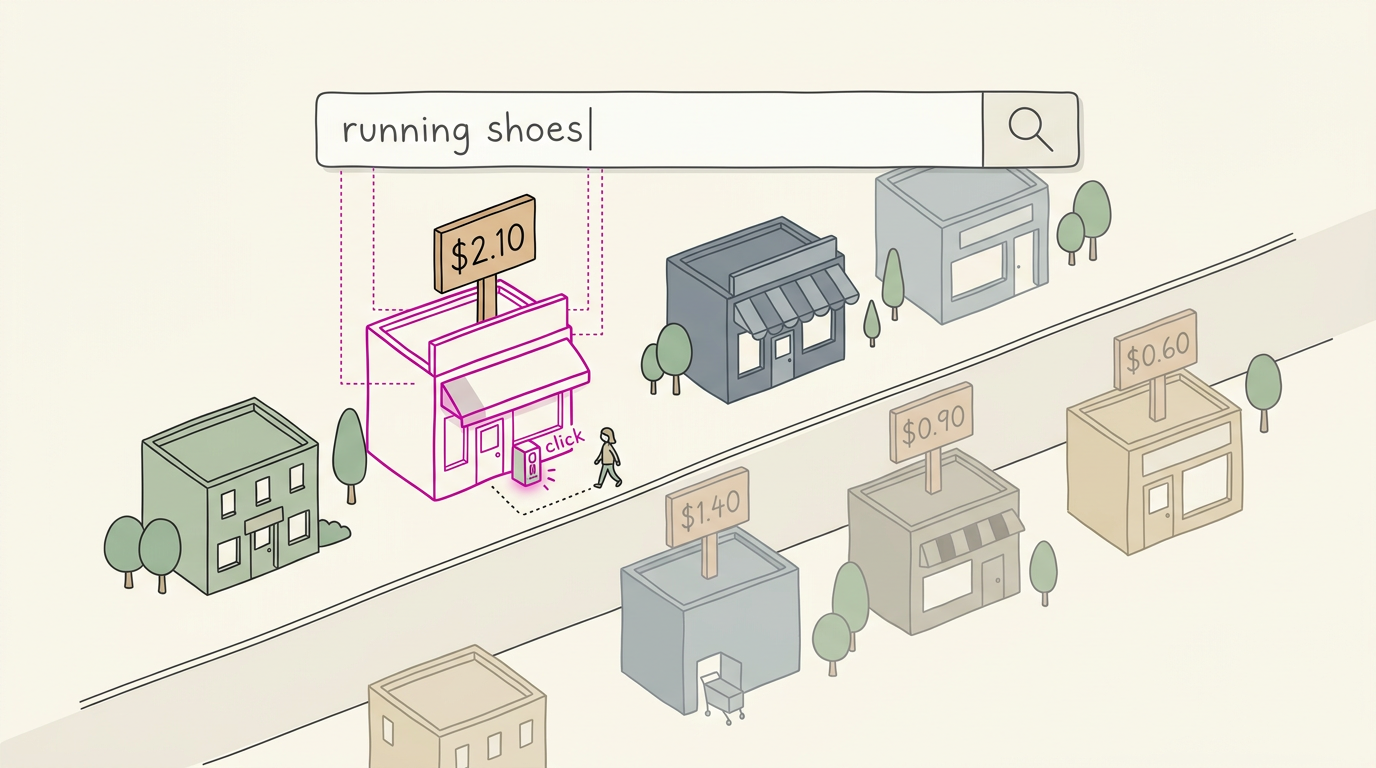
When your website doesn’t appear on Google, the cause is usually something fixable. Google may not have saved your pages yet (a step called indexing), or your pages may not match what people actually search for.
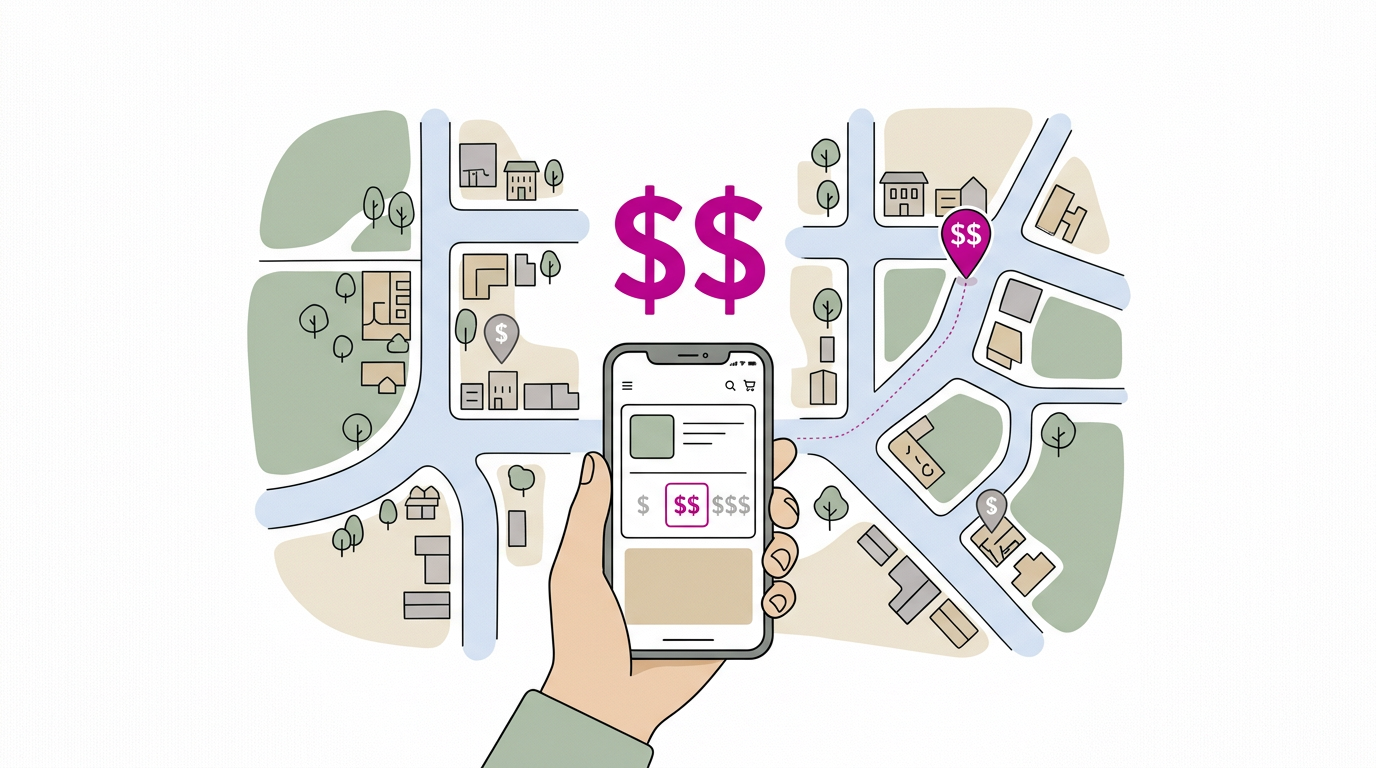
We’ll walk through each cause in order, then cover the local layer many guides skip: your map listing and nearby searches, since your website isn’t always the problem.
Why Google Can’t Index Your Website
In SEO (search engine optimization), indexing is the step where Google adds your pages to its searchable list. A page missing from that list can’t appear in results, however good it is.
Check if Google has indexed your site
Type the site: search operator, a command that limits results to one website, followed by your web address, like site:yourbakery.com. Pages that appear are indexed.
If you own a bakery and only your homepage shows up, your cake pages are missing from Google.
Google Search Console is Google’s reporting tool for site owners, and its diagnostics flag why pages are left out.
New sites can take weeks to show
Google has to discover your site before it can index it, and that can take days to weeks. A site that’s new isn’t necessarily broken.
Think of a plumber who launches a site on Monday and checks on Tuesday. Nothing shows up, which is normal. Use the wait to publish your core pages:
- services
- service area
- hours
- phone number
That gives Google real content to index. Don’t wait empty-handed.
Check robots.txt and noindex tags
Check these two spots for accidental blocks:
- robots.txt: a small text file that tells search engines which parts of your site to skip. Look for
Disallowlines, the rules that block pages, covering anything you want listed. - noindex tags: code that tells Google not to list a page. Search your page source for “noindex.”
One misconfigured line, like a leftover from a test version of your site, can block pages you need. Test the file in Search Console after any change.
Blocking is smart when you do it on purpose, like keeping a staff login off Google. It’s a problem when it happens by accident. Should you let Google index your site?
For your public pages, yes: hours, services, and your phone number are what customers need to find. To keep a specific page out, add a noindex tag to it.
Create and submit your sitemap
A sitemap is a file that lists your pages for search engines. Here’s the setup:
- Look for a file named sitemap.xml at your web address and confirm it lists your current pages.
- If you don’t have one, a plugin (a small add-on that extends your website software) can create it for you.
- Submit it in Search Console so Google knows where to find it.
A salon owner who does this hands Google a clear list that includes her booking page, so it isn’t left to luck.
How do I make Google crawl my site?
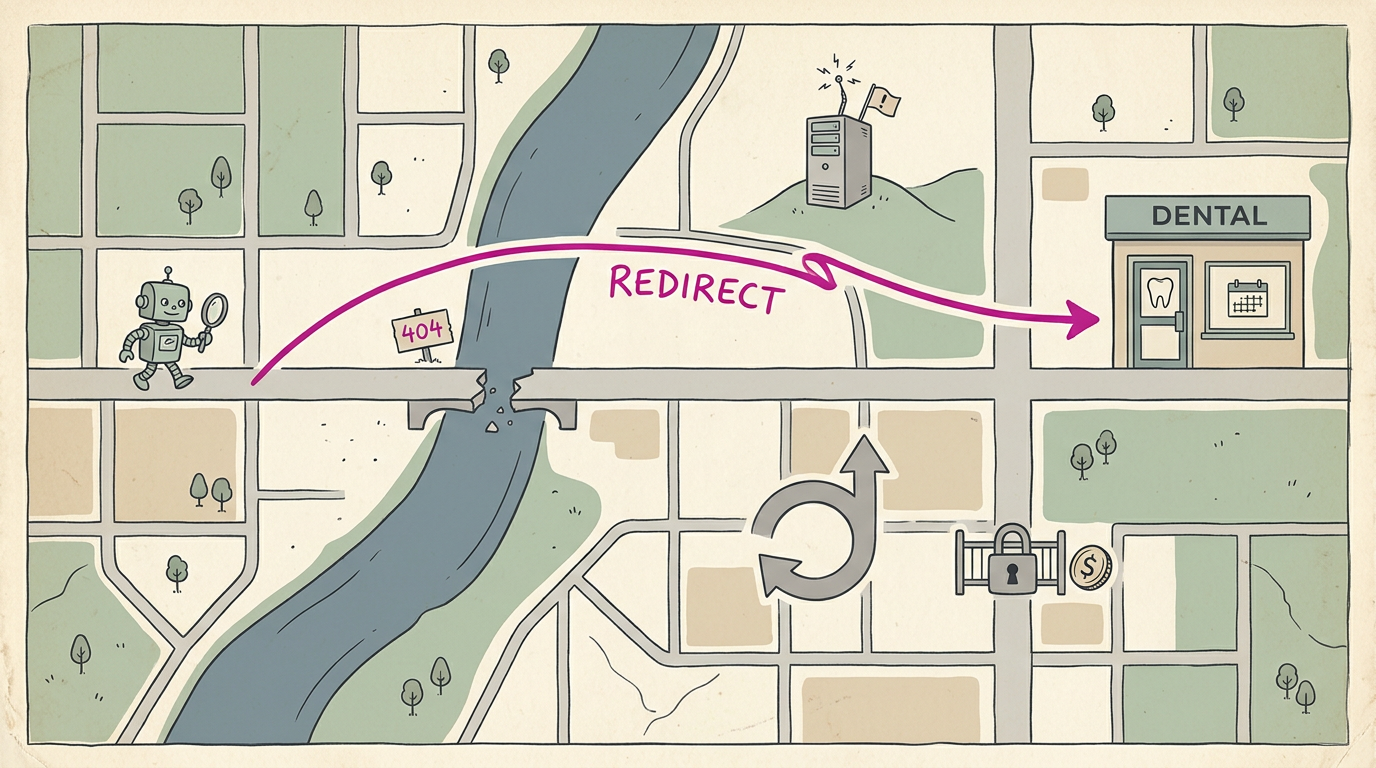
Crawling means Google visiting your pages to read them. You can’t order a visit, but you can clear what blocks one. Check these four problems:
- 404 errors: the page can’t be found at that address.
- Server errors: your site fails to respond when Google visits.
- Incorrect redirects: forwards that send visitors or Google to the wrong place.
- Login or paywall blocking: content behind a login or payment wall can’t be read.
Picture a dental office that moves its booking page without a redirect, leaving the old link as a 404 dead end. Fixing that one redirect reopens the path. Then use request indexing in Search Console to ask Google to recrawl the page.
Choosing Keywords and Optimizing Pages
Google matches pages to the words people type, so we’ll show you how to pick and place yours.
Choosing keywords you can actually win
Broad searches like “plumber” are nearly unwinnable, so narrow your niche to the jobs you’re known for. Go after less competitive keywords, and favor long-tail keywords: longer, specific phrases like “emergency drain cleaning.”
Then add your town to your service keywords.
Think of a plumber whose homepage chases “plumber” alone. Rewriting it around “emergency drain cleaning” plus the town name gives it a real shot. Those are the calls you want.
Matching keywords to what you offer
When visitors leave quickly because the page didn’t match, that’s a negative signal to Google.
Match search intent: the reason behind the search. It’s less about the words they typed and more about why they typed them. Think of a salon owner whose page targets “hair salon open Sunday” but never lists Sunday hours.
Adding those hours and a booking button closes the gap.
Placing keywords naturally on your pages
Keyword research tools show how people phrase their searches, so you can borrow their wording. Put your main phrase in the page title (the clickable headline in search results), the web address (the URL, or page address), and the first heading.
Avoid keyword stuffing, cramming one phrase into every line. Repeating “emergency plumber” six times reads like a robot wrote it, and customers notice.
Update pages when hours, prices, or services change. Stale pages make visitors wonder if you’re still open. You want them current, not just finished.
Tightening up product and page details
Four quick fixes make each page easier to find and trust:
- Meta tags on every page. A meta tag is a note in the page’s code that describes it to search engines.
- Strong H1 headlines. The H1 is the big title at the top of a page. Make it say what you do and where.
- Detailed product descriptions. Say what’s included, how long it takes, and what it costs. “Great service!” tells nobody anything.
- Product reviews. Put honest customer reviews right beside each product or service, where buyers decide.
Think of a bakery owner whose wedding cake page lists flavors, pickup times, and reviews from three past couples. That’s often what turns a browser into a booking.
Weak Content and Confusing Site Layout
Even a solid site can stall when its pages repeat or confuse visitors. Here’s what we’d check first.
Stop publishing duplicate and thin content
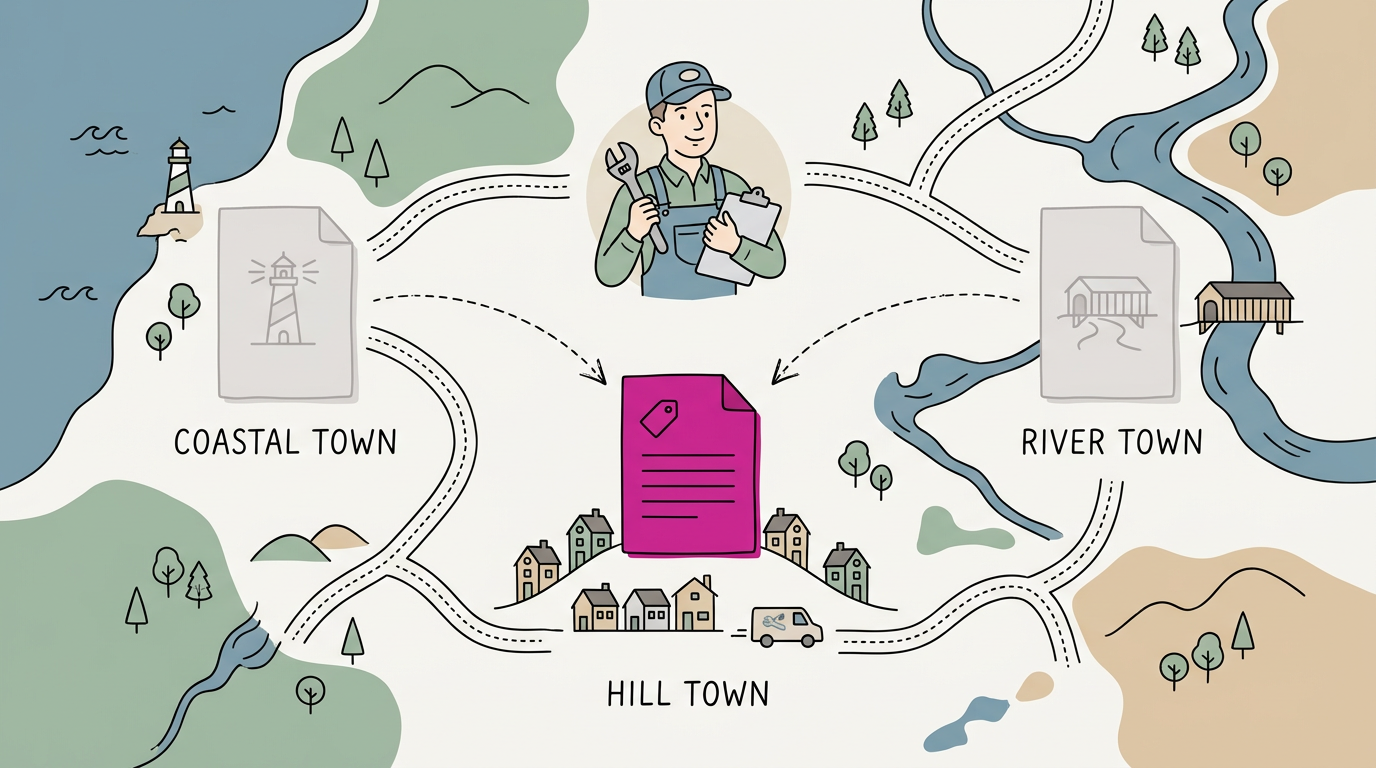
Duplicate content is the same text on several pages, on your site or someone else’s. A canonical tag, a short line of code, names the main version for Google, and your web person can add one.
Competing pages also split their link equity, the ranking credit other sites give through their links. Point weaker copies to your strongest page.
Think of a plumber with one paragraph repeated across three town pages. Giving each town its own local jobs and photos gives every page a real reason to exist.
Thin content holds little real information. Aim for unique, valuable content that answers a real customer question. Pages should be useful, not just plentiful.
Make navigation clear and pages fast
Make your navigation, the menu that guides visitors, logical: broad categories up top, specifics nested beneath. Once a month, tap through it and fix any broken links that lead to a ‘page not found’ screen.
Mobile-friendly design means your site works on a small screen. Picture someone in your parking lot on a phone: text readable without zooming, your number one tap away.
Fast loading times matter too. A bakery owner who shrank oversized photos and dropped unused extras gave visitors a page that opens right away.
Keep content fresh with a blog
An in-store blog is a simple section for shop news: a new service, a seasonal tip, a finished job. It gives customers a reason to come back.
Refresh your oldest pages every few months and keep information current. Outdated hours tell visitors nobody’s minding the store. Fresh and accurate wins.
Getting Other Sites to Link to You
Links from other websites help decide who ranks. Here’s how to earn good ones and avoid bad ones.
Too few quality links pointing to you
According to How Google Ranks Pages: What’s Actually Documented, links to a website are a key factor in Google’s search ranking systems.
Quality backlinks (links from other sites to yours) also speed discovery and help you compete for tough keywords like “emergency plumber.” If yours are few, it’s less about how many you add and more about which ones you earn.
Common link building tactics
Here are the usual tactics, plus one to skip:
- Outreach to related sites. Ask suppliers, partners, and groups like your local chamber of commerce to link to you. Think of a plumber whose chamber lists members online. That link from a trusted local source gives neighbors another easy way to find the business.
- Guest posting. Write a useful article for a related site, with a link back to your business.
- Catalogs, forums, and Quora. List your business in reputable catalogs, join relevant forums, and answer Quora questions with real help, linking to your site where it fits.
- Buying links. Skip it. Paid links meant to push rankings break the rules below.
Spammy links that can hurt you
Spammy or irrelevant links can hurt you, and Google’s spam policies identify link schemes intended to manipulate search rankings as a violation. Those can earn you Penguin penalties that keep your site from showing up. Shortcuts rarely pay off.
To check for trouble:
- Audit your links. Run a search engine optimization (SEO) tool to see who links to you, and flag anything spammy or unrelated.
- Use the Disavow Tool. For bad links you can’t remove, Google’s Disavow Tool lets you ask Google to ignore them.
When Google Penalizes or Filters Your Site
Some sites are penalized or filtered, and each problem has a clear fix. Here’s how to spot yours.
Recovering from a Google penalty
A manual action is a penalty a reviewer at Google applies when your site breaks search rules, often for hidden text (words colored to blend into the background), cloaking (showing Google a different page than visitors see), or scraped content (copied text from other sites).
Check Google Search Console for alerts.
Recovery follows three steps:
- Find out exactly what was flagged.
- Remove the problem.
- Submit a reconsideration request asking Google to review your site.
Think of a dental office whose old developer buried invisible keywords in its footer. Removing them is usually a short job, and then the practice can start showing up for its own town again. Fix it first, then ask.
Keeping your site secure and clean
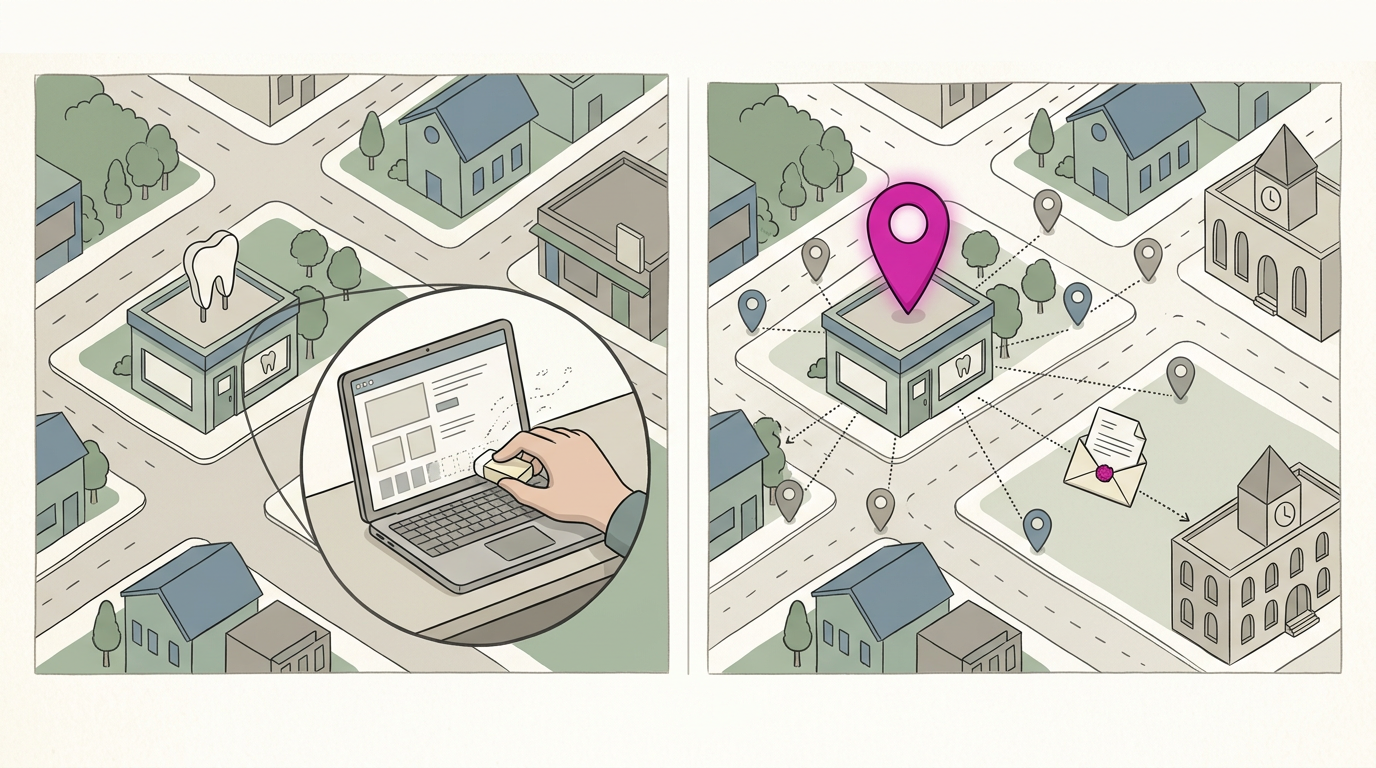
Start with HTTPS (HyperText Transfer Protocol Secure), the secure version of your web address, backed by a certificate using Secure Sockets Layer and Transport Layer Security (SSL/TLS).
Hackers sometimes slip in spammy pages or links, called injections. Look for anything you didn’t create.
Keep your content management system (CMS), such as WordPress, and its plugins updated. Keep regular backups (saved copies of your site) and audit it every few months.
When SafeSearch filters your pages
SafeSearch is Google’s filter that hides explicit results from anyone who turns it on, so explicit material can make your pages vanish for those users. Label adult content with a meta tag, a line of code that describes the page to search tools.
Then keep adult content on separate pages, so a flag lands on one page instead of your whole site.
Making gated content visible to crawlers
Gated content sits behind a login, form, or paywall, and crawlers (the programs Google uses to read pages) can’t get past it. Picture a dance studio that locks its schedule behind a sign-in page, so parents searching nearby never see it.
Start by offering public snippets, short previews anyone can read. Then add schema markup, extra code that tells search engines which parts of a paywalled page are locked.
The First Click Free policy is one of Google’s rules for gated pages. Rules like this change, so check Google’s current documentation before you build around it.
Diagnosing Problems and Building a Fix Plan
Before you change anything, we’ll find out what’s blocking you. Search engine optimization (SEO) just means making your site easy for Google to find.
Use Google Search Console to diagnose issues
- View how Google sees your site. Check whether each key page is in Google’s index, the library of pages it can show in results.
- Check errors and security issues. Fix pages Google can’t read and any security flags, like hacked content, before anything else.
- Submit your sitemap. A sitemap is a list of your pages. Submit it so Google can find all of them.
- Review backlinks. Backlinks are links from other sites to yours. Flag any you don’t recognize.
Two problems look alike but need different fixes. A page that’s not indexed isn’t in Google’s library, so it can’t show up for anyone. A page that’s indexed but ranking nowhere is stored, yet never shows for your searches.
If your logo isn’t showing, check indexing first, since a logo only appears once its page is indexed. After that, keep your logo file easy to load and matching your Google Business Profile, since Google picks which image to show.
Follow a checklist and audit regularly
Search your business name plus your town. A bakery owner who types “Bella’s Bakery Riverside” and finds an old listing with the wrong address fixes her Business Profile first, so customers stop heading to the old address.
Work through these in order:
- Confirm Google can see your site.
- Clear any errors and security flags.
- Fix your name-plus-town listing.
- Match your logo across your site and profile.
Regular SEO audits. Repeat these steps monthly to catch new problems early.
Proactive adjustments. Update your site and profile the day your hours change, you move, or you add a service. Don’t wait for a problem.
Most missing websites trace back to a short list of causes: Google can’t index your pages, your content doesn’t match what customers search for, or a penalty or confusing layout is holding you back.
Work through those checks in order and you’ll usually find the culprit.
If your website checks out, don’t stop there. Look at your map listing and the searches people run nearby, since that’s where nearby customers are searching.
Fix one thing at a time, and the next person searching for you will find you right where they’re already looking.
References
- How Google Ranks Pages: What’s Actually Documented — laylar.com (2026)
- Spamrichtlinien für die Google Websuche | Google Search Central | Documentation — developers.google.cn
Questions
What is indexing in SEO?
Indexing in SEO is the process of adding a webpage to Google’s searchable database. A page that is not indexed cannot appear in Google search results.
How can I use Google Analytics for my website?
Use Google Analytics to understand how people find and use your website. Install its tracking tag or connect it through your site platform, then review reports on traffic sources, visitor behavior, and conversions to guide improvements.
How can I force Google to crawl my website?
You can’t force Google to crawl a page, but you can remove obstacles and request a recrawl. Fix errors such as 404s, server problems, incorrect redirects, or login barriers, then use URL Inspection in Google Search Console to request indexing; submitting a sitemap can also help Google discover pages.
How to index searches on Google?
To get your own pages indexed, make sure they are accessible to Google and not blocked by robots.txt rules or a noindex tag. Submit a sitemap in Google Search Console and use URL Inspection to request indexing for an individual page. Google decides whether and when to index it.
How to keep Google from indexing a website?
Use a noindex tag on pages you do not want listed in Google, such as a private staff page. You can also use robots.txt to block crawling, but robots.txt alone does not reliably prevent a URL from appearing in search results if Google discovers it elsewhere.
Why is Google not showing all search results?
Google does not show every possible result for a search. It filters and ranks pages based on relevance, quality, duplication, and other signals, and may omit similar or low-value results; changing the query can reveal different pages.
Why is my website logo not showing on Google search?
Google chooses whether and which logo image to show, so a logo is not guaranteed to appear in search results. Make sure the relevant page is indexed, the logo file loads reliably, and the image matches your Google Business Profile.
Should I let search engines index my website?
Usually, yes: indexing public pages helps customers find your services, hours, and contact information through search. Keep private or sensitive pages out of results with a noindex tag, and check that you have not accidentally blocked pages you want customers to find.