How to Ask for Google Reviews (Timing, Wording, and Links)
How to ask for Google reviews: get your link, choose the right moment, and request feedback by text, email, or in person while following Google's rules.

Asking for Google reviews means inviting customers to share honest feedback on your Google Business Profile, the listing people see in Search and Maps. Make it easy with a direct review link or QR code, ask every customer at a natural moment, keep the message brief and low-pressure, and follow Google’s rules by avoiding incentives, fake reviews, and review gating. Consistent, respectful requests help build trust, improve your local visibility, and reveal ways to serve customers better.
Think about the last time a friend asked where to find a good plumber. You didn’t send them a brochure. You shared a name you trusted, and that’s exactly what Google reviews do for your business.
Here’s the short answer: ask every happy customer, at the right moment, with an easy link.
In this post, we’ll walk through getting your review link, staying within Google’s rules, timing and wording your requests, following up, and putting every interaction to work.
Why Asking for Google Reviews Pays Off
Reviews shape who calls you, how Google ranks you, and what you learn. Here’s why we’d make asking a habit.
How reviews build trust and sway buyers
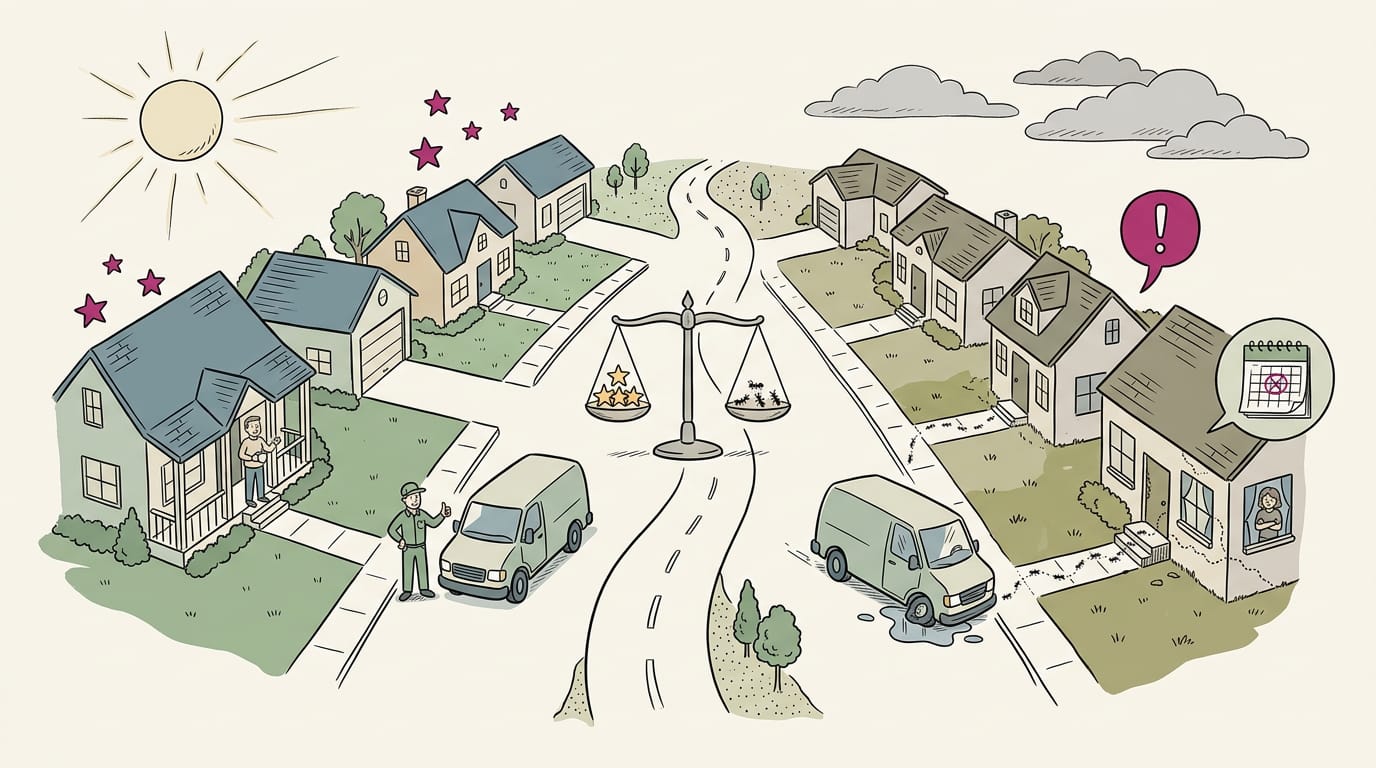
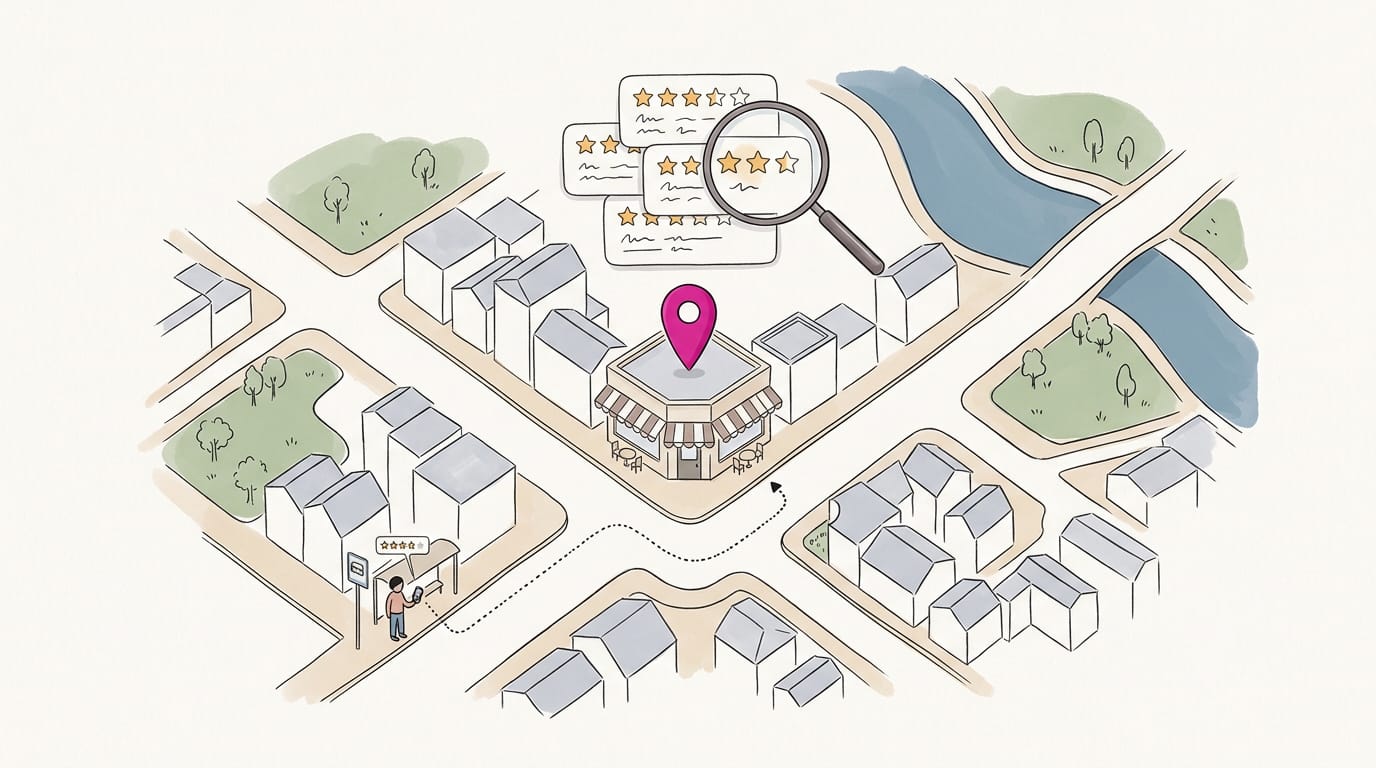
Your Google Business Profile is the listing that shows your reviews in Maps and search. Picture someone searching “emergency plumber” at night. They scan stars and skim reviews, and that often decides who they call.
That’s social proof, other people’s experiences lending you credibility. A study on Google Business Profile found that in 2022, 87% of customers used Google to assess local firms.
Stars come first. The rating tells a stranger whether you’re worth a closer look.
A rival with steady new reviews gets free marketing you don’t. Reviews win on what customers say, not how clever your ads are.
How reviews lift your search rankings
According to Search Engine Land’s guide to Google reviews, Google states that more reviews and positive ratings can improve where your listing ranks in local results. That’s a review signal, which Google weighs when deciding what to show.
Local search is where this shows most. Someone types “dentist near me,” and reviews help your listing stand out.
In some industries, the gap between a 4.0 and a 4.5 can make or break a business, according to Hong Kong University of Science and Technology research.
Learn from feedback and engage customers
Every review is a feedback loop, a free look at what customers notice. A dental office manager hears three complaints about lobby waits, shifts the morning schedule, and watches the complaints fade from new reviews.
Happy customers become promoters when you ask. A plumber who fixes a burst pipe at 9 p.m. hears, “You saved our weekend.” Ask right then, and that praise becomes a review.
Negative reviews sting, but they’re useful. A calm, specific reply shows future readers you’re listening. Your goal isn’t avoiding bad reviews. It’s responding well to them.
Numbers on how people read reviews
- 97% read local reviews. Almost everyone checks what others say.
- 64% check Google reviews. Focus your requests there.
- Requested reviews rate higher. Hong Kong University of Science and Technology research found that asked customers give higher ratings, with averages up 0.151 out of 5 stars.
So the question isn’t whether people read reviews. It’s whether yours are there when they do.
Get Your Review Link and QR Code
Before you ask anyone for a review, you need a direct link to your Google Business Profile, the listing that shows up when people search for your business. Here’s how to grab that link and turn it into something customers can scan or tap.
How do I create a Google Business QR code?
A QR code is the square code a phone camera can scan. Making one takes three steps:
- Find your Business Profile link.
- Look for the “Get more reviews” button.
- Copy the link, or save the QR code.
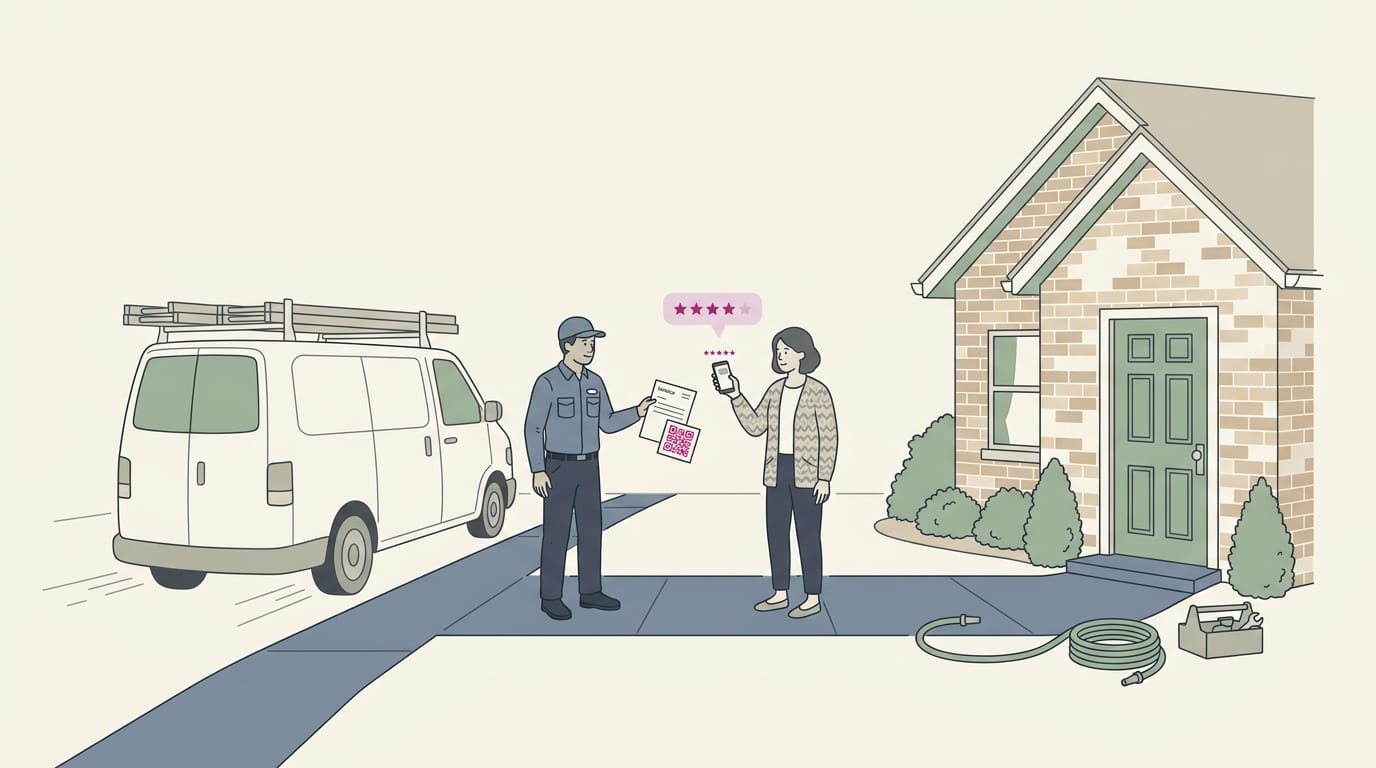
Print the QR code on a counter card, a receipt, or an invoice, and it’s ready to go. Think of a plumber who tucks a small card into every invoice. The customer who just had a leak fixed can leave a review from the driveway before the van pulls away.
One thing to know: reviewers need a Google account. A quick heads-up at the counter saves a few frustrated minutes.
Why a direct link makes asking easier
Instead of telling customers to search for your business, you hand them a link that goes straight to the review box. Less hunting. More reviews.
- Fewer steps for customers. Less searching means less chance they’ll give up halfway.
- Correct listing guaranteed. The link points to your own profile, so reviews land on your business and not on a similarly named shop down the street.
- More control over process. You decide where the request goes, when it’s sent, and who gets it.
Stay Within Google’s Rules When Asking
Asking for reviews is allowed. The trick is doing it in a way that protects your listing and your customers’ trust.
What’s allowed and what’s off limits
- Asking is permitted. Send the link after a job or sale, and say you’d value feedback. For example, a plumber who texts “Thanks for having us out today. A Google review would help a lot” is doing it right. Ask for an honest review, not a glowing one.
- No incentives or discounts. Don’t offer a discount, free service, or gift for a review. That turns feedback into a purchase, which Google’s rules don’t allow.
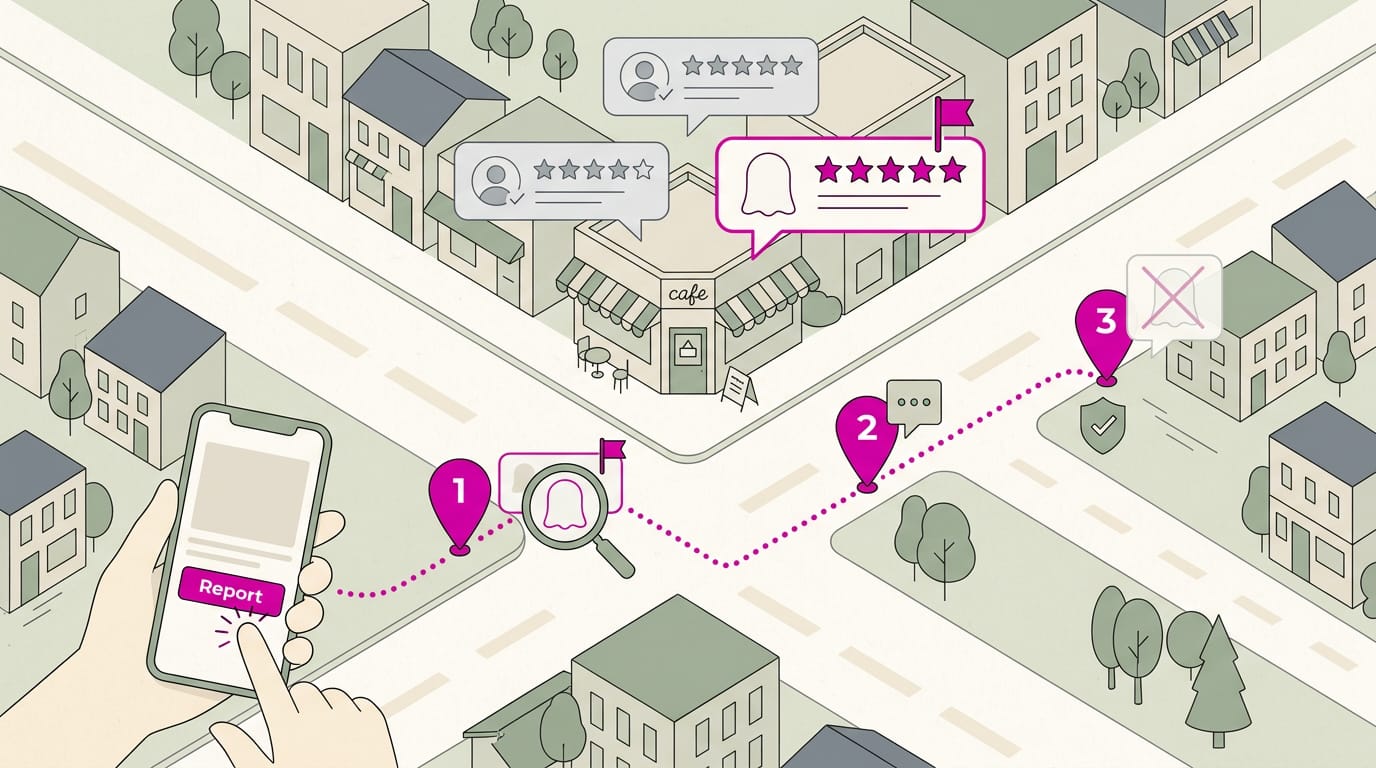
- No fake or bought reviews. Never write reviews yourself, have staff post under other names, or pay anyone to leave one.
- No review gating. Don’t send the link only to happy customers and steer unhappy ones to a private form. Every customer gets the same invitation.
Legal and privacy rules to follow
FTC endorsement rules. The Federal Trade Commission (FTC) treats reviews as endorsements, so they should reflect real experiences with your business. Keep it honest.
Permission before texts and email. Send a review request by text message (SMS) or email only after the customer has agreed to hear from you that way. Think of a dental office that asks patients to opt in at check-in and texts only those who said yes.
Those patients expect the message, so it reads as good service.
Privacy and data protection. Your customer list holds personal details, so store it securely, use it only for review requests, and never share it. Privacy laws vary, so check which ones apply to you. If someone opts out, stop messaging them.
When and How Often to Send Requests
Timing decides whether a request feels like a thank-you or a nuisance. Here’s how to pick the moment, the hour, and the follow-up.
Pick the right moment to ask
Ask when customers are happy, not when you’re finished. For example, a salon owner who hears “This color looks amazing!” at the mirror can say, “Would you mind leaving us a Google review?” before the client walks out.
Two more moments work well:
- Delight moments: An unexpected extra, like a plumber who tightens a loose fixture on the way out, is a natural reason to ask.
- Job completion or pickup: Ask when the keys change hands or the finished work is picked up.
Two situations call for patience. Slow-result products, like a skin treatment that takes weeks to show, need time, so wait until the results are visible. After you resolve a complaint, wait until the customer says they’re satisfied.
Pick the best time of day
Afternoon and early evening are your sweet spot. Think of a dental office that sends its request at 3pm on a Tuesday, while the visit is still fresh in the patient’s mind.
Businesses should avoid sending review requests overnight. Research, The Weekend Effect in Online Reviews, suggests businesses strategically solicit reviews on weekdays to reduce negative reviews written on the weekend.
Keep sends during business hours, not after them.
Following up without annoying customers
Not everyone acts on the first ask, and that’s normal. Send one follow-up reminder 24 to 48 hours later. For example, a bakery owner might text, “Thanks for stopping by! If you have a minute, a quick Google review helps neighbors find us.”
One reminder is enough. Repeated nudges turn a friendly thank-you into pressure, and customers can tell.
Email, Text, and In-person Ways to Ask
Each channel suits a different moment. Here’s how to use email, text, and face-to-face asks well.
Sending review requests by email
Email is a workhorse for review requests. Keep three habits in place:
- Personalize with the name. “Hi Dana” beats “Dear Customer.”
- Include the direct link. Put it near the top so nobody has to hunt for it.
- Write a clear subject line. Try “Thanks for visiting, Dana” or “How did your visit go?”
Here’s a template:
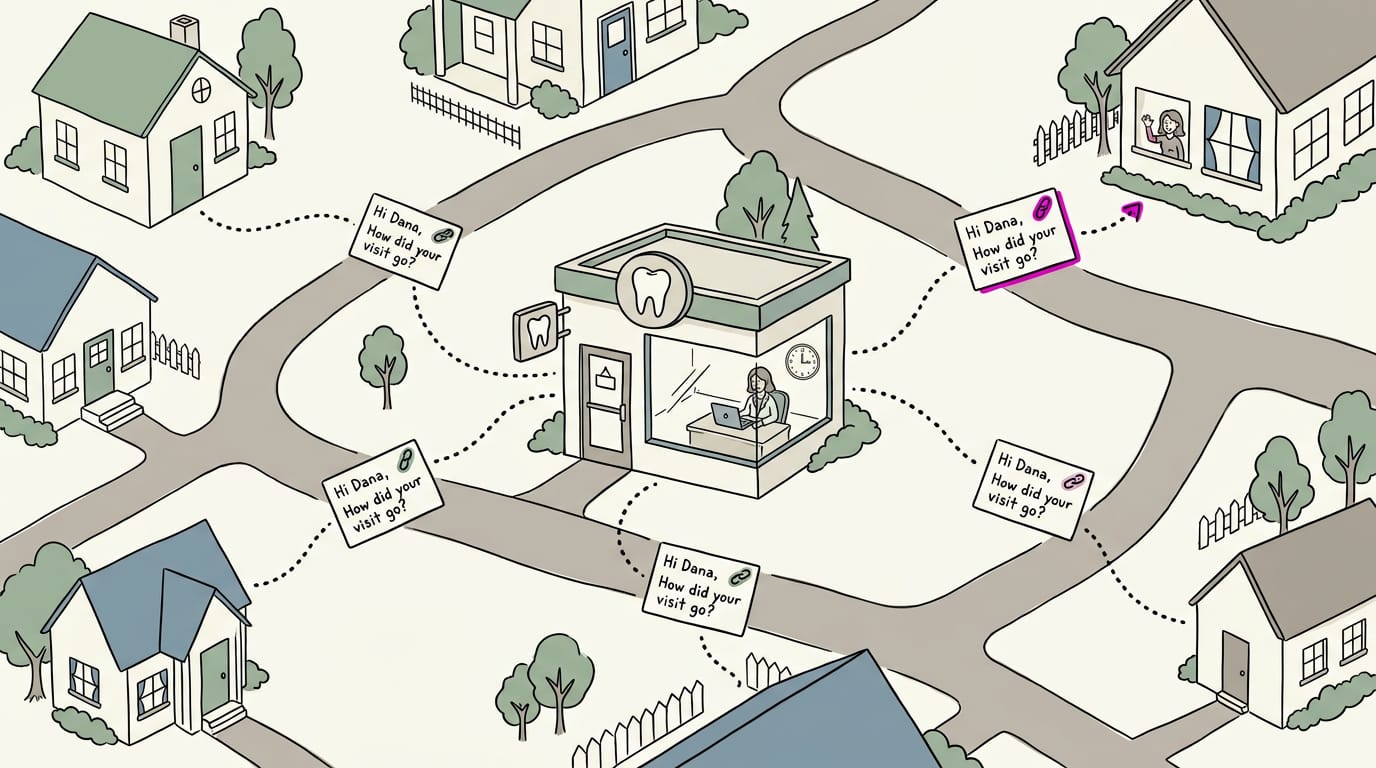
Hi Dana, thanks for stopping by [your business]. Would you mind sharing your experience on Google? Here’s your direct link: [your direct review link]
A dental office manager sends a version of this the afternoon of every cleaning.
Texting customers for reviews
- High open rates. Texts tend to get seen quickly, so they’re a strong follow-up when email goes unread.
- Short, friendly messages. One warm sentence and your link is plenty.
- Mobile-first reviewers. Customers will read on a phone, so test your link on your own phone first.
Hi Dana, it’s [your name] at [your business]. Would you leave us a quick review? [your direct review link]
Scripts for in-store and phone asks
- Staff scripts at checkout. Give your team one line: “Would you leave us a quick Google review?”
- Tablet or kiosk at point of sale. A counter tablet showing your review link lets customers tap once and finish.
- Phone call after resolution. Once you’ve fixed a problem, a short follow-up call is a natural time to ask.
- Offer to send the link. “Want me to text it to you?” saves customers from searching later.
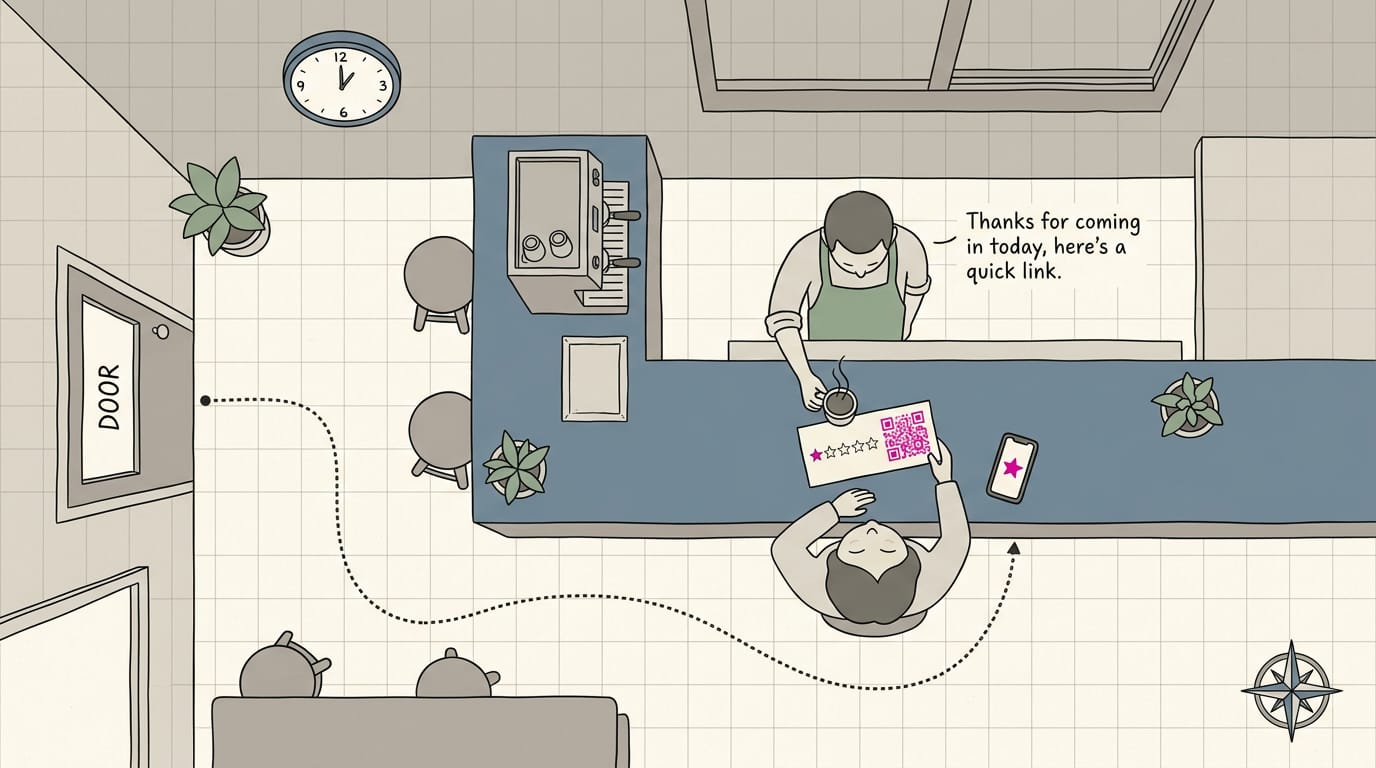
- Counter card with a QR (quick response) code. Place it by the register for a one-scan review page.
A salon receptionist who offers the link as clients pay gets reviews while the visit still feels great. Ask while the good feeling lasts, not after it’s faded.
Using your website, print, and social media
- Pop-ups and product pages. A small, polite pop-up reminds visitors who already know your work.
- Receipts and flyers with QR codes. Customers scan and go straight to your review page.
- Social media posts. Thank customers and invite them to share with followers.
- Landing pages for reviews. A simple page with your direct link and a thank-you line works well.
- Order confirmation pages. Add a line inviting a review once the service is done.
Requests for loyal fans and business partners
- Long-term loyal customers. A personal ask, like “You’ve been coming in for years, would you share that?”, beats a generic form.
- Business-to-business (B2B) vendors and partners. Suppliers and referral partners know your work firsthand, so keep the ask low-pressure.
- Software-as-a-service (SaaS) milestone requests. A customer’s first renewal or a big win is a natural moment to ask.
Start with the people who already like you.
Writing a Request That Gets Results
A good request is short, warm, and easy to act on. Here’s how to write one.
How do you ask for a Google review?
Start with your review link, the address that opens your review form directly, then follow five habits:
- Keep it short and clear. Name your business, include the link, and stop.
- Make it personal and genuine. Use the customer’s first name and the specific job: “Thanks for coming in Tuesday for your brake check, Dana.”
- Explain why reviews matter. Add one line: reviews help the next person choose who to call.
- Make it effortless. Text or email the link so it’s one tap away, and keep a printed card with a QR (quick response) code at the counter.
- Avoid pushy language. Skip “you have to” and “we really need.” Make it an invitation, not a demand, and ask once.
Picture a plumber who texts each customer an hour after the job: “Hi Dana, thanks for letting us fix your kitchen faucet today. If we did right by you, a quick Google review helps neighbors find us: [your review link].” That’s the whole ask.
A few of those each week can bring in steady calls.
Two copy-paste examples you can adapt:
- Restaurant: “Thanks for dining with us, [first name]! If the food hit the spot, we’d love a quick Google review: [your review link].”
- Salon: “Hi [first name], thanks for coming in today. A short review helps new clients find us: [your review link].”
Asking for feedback comes first. Send a quick text like “How did everything go today? Just reply here.” That lets you fix a problem privately before it turns into a public complaint.
Then send the review request to every customer the same way, not just the happy ones.
Tools That Automate Your Review Requests
Sending requests by hand gets old fast. These tools take over the repetitive part, and we’ll show where you still need to step in.
Software to manage reviews across platforms
Most review tools handle four core jobs:
- Automated request campaigns. Write the text or email once, and the software sends it soon after each completed job.
- Customer relationship management (CRM) integration. Link your customer records, and new clients join your request list without anyone retyping their details.
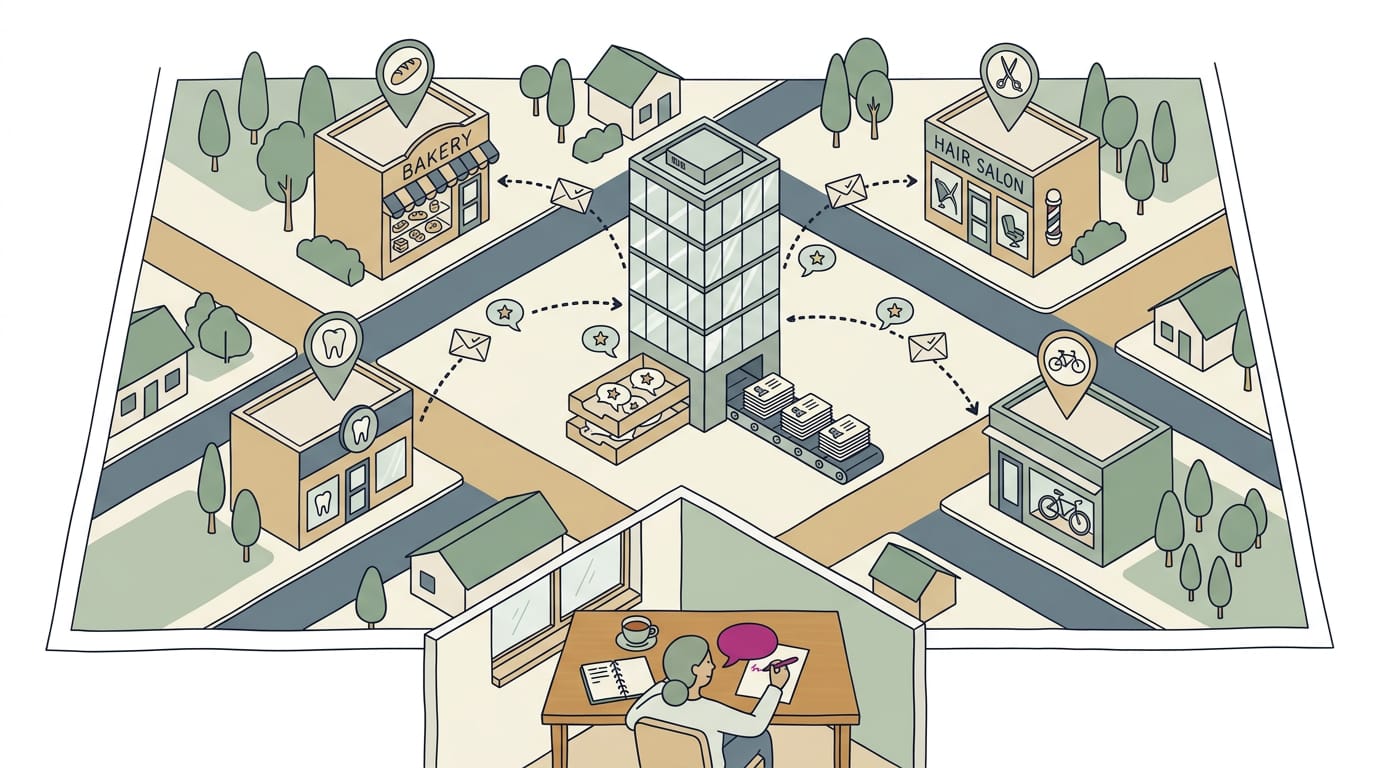
- Multi-location management. With several sites, one dashboard sends each location’s requests to its own Google Business Profile, so reviews for one branch don’t get mixed up with another’s.
- Monitoring across platforms. New reviews from Google and other sites land in one inbox, so you can reply to a negative one the same day.
Automation handles the asking, but a real person still does the answering.
Ecommerce emails and tracking conversions
If you sell online, a post-delivery email flow can ask for the review for you. A flow is a series of emails sent automatically when something happens.
Once the carrier marks an order delivered, the system waits a short while and sends a note linking to your review page.
Unique QR codes cover the in-person side. A quick response (QR) code is the square a phone camera reads. Give each printed card, receipt, or counter sign its own code leading to your review page, and you’ll see which spot brings in reviews.
The goal is knowing where reviews come from, not just how many arrive. Without that tracking, you’re guessing.
For example, a bakery puts one code on its receipts and another on the counter sign, then shifts its effort to whichever brings in more reviews.
What to Do Once Reviews Come In
Your replies and your follow-through decide whether new customers see a business that listens.
Replying to reviews, good and bad
Your review replies are public, so write them for the next customer reading along, not only the reviewer.
- Respond promptly and personally. Use the reviewer’s first name and reply while the job is still fresh.
- Thank all reviewers. Five stars and one star both deserve a reply.
- Handle negatives professionally. Acknowledge the problem, apologize, and offer to make it right by phone or email.
- Never delete negatives. Removing a critical review hides the problem instead of fixing it.
- Don’t argue publicly. Even when you’re right, a public argument makes you look worse. Take the details offline.
For example, a plumber gets a five-star review that says, “Showed up on time and fixed the leak in one visit.” A reply like “Thanks, Marcus! Glad the leak is fixed. Call us anytime.” shows the next homeowner what to expect.
If a review is missing, check that you’re signed in to the Google account that manages your Google Business Profile, the listing customers find on Google. Give it time, then look again. If it’s still missing, contact Google’s Business Profile support.
Using feedback to improve what you sell
Read reviews as a group and look for common themes. When three or four people mention the same thing, that’s your signal.
A dental office that hears about long waits in several reviews can text patients when their room is ready.
Once you spot a pattern, make the fix that matters most. That might be a clearer price list or a faster callback. Change one thing at a time so you can tell what actually worked. Start small.
Rules for Other Review Sites
Google isn’t the only place customers leave reviews, and the rules for asking change from one site to the next. Here’s where the big ones stand, so you don’t make the request in the wrong place.
How each review site handles requests
The same request can be welcome on one site and unwelcome on another, so check first:
- Yelp: discourages asking customers for reviews, so skip the request there and put your effort into Google.
- Tripadvisor: welcomes requests, so inviting guests to share their experience is a fair move.
- Facebook recommendations: these live on your business Page. Keep the ask simple: make the Page easy to find and let happy customers recommend you when they’re ready.
- Trustpilot, G2, and Capterra: if you sell to other businesses (business-to-business, or B2B), these are the sites to know. Look at each one before you ask.
Think of a restaurant manager near a busy hotel district. She can invite out-of-town diners to share their meal on Tripadvisor while local regulars get the Google link.
Each guest gets one clear invitation instead of a pile of scattered ones. Aim it right.
Asking for Google reviews doesn’t have to feel awkward or complicated. Get your link and QR code in place, time your requests for when customers are happiest, keep your wording simple, and follow up with care.
Do that consistently, and your reviews will build over time.
So start small: pick one happy customer this week and send them your link. One review at a time, your reputation builds, and asking gets easier.
References
- A STUDY ON THE IMPACT OF GOOGLE BUSINESS PROFILE ON BUSINESS SUCCESS — doi.org (2025)
- The Hidden Cost of Asking for Reviews — bm.hkust.edu.hk (2026)
- The Weekend Effect in Online Reviews — doi.org (2025)
- HOW HOSPITALITY FIRM STRATEGIES AFFECT CONSUMER BIASES IN ONLINE REVIEWS — doi.org (2021)
- Google Reviews & SEO: Advanced Strategies That Scale — searchengineland.com (2025)
Questions
How do I give more Google reviews?
Ask every customer for an honest review after a completed job or sale, ideally while their positive experience is fresh. Share your direct Google review link by text, email, or QR code, and send at most one reminder 24 to 48 hours later. Do not offer incentives or ask only happy customers.
How do I create a Google Business QR code?
Open your Google Business Profile and select “Get more reviews.” Copy the review link or save the QR code, then place it on a counter card, receipt, or invoice so customers can scan it and go to the review page.
How to encourage customers to leave reviews?
Ask at a natural moment, such as after completing a job or when a customer expresses satisfaction. Keep the invitation friendly and low-pressure, share a direct review link, and invite every customer to give honest feedback. Don’t offer rewards or discounts for reviews.
How do I ask for feedback?
Ask a brief, open question such as, “How did everything go today?” You can invite the customer to reply by text or share feedback in person, then use what they say to address concerns and improve the experience.
How do you ask for a Google review?
Thank the customer, make a simple request for an honest review, and include a direct link. For example: “Hi Dana, thanks for choosing us today. Would you share your experience on Google? Here’s the link: [review link].”
How do I see reviews I've made?
To see reviews you’ve written, sign in to the Google account you used to post them. In Google Maps, open your profile and select “Your contributions,” then choose “Reviews.” You can also find them through your Google account’s Maps activity.
Can you provide some examples of positive customer reviews?
Examples of positive customer reviews include: “The plumber arrived on time and fixed the leak in one visit.” “The staff was friendly, and the appointment started promptly.” “I love my haircut, and the stylist listened to exactly what I wanted.” Reviews should reflect real experiences and be written in the customer’s own words.
Can someone see if I look at their Google reviews?
Google does not notify people when you view their reviews or Google Maps profile. Reviews posted publicly may show the reviewer’s name and profile details, but they cannot see who has read them.
Sources
- HOW HOSPITALITY FIRM STRATEGIES AFFECT CONSUMER BIASES IN ONLINE REVIEWS, doi.org,
- A STUDY ON THE IMPACT OF GOOGLE BUSINESS PROFILE ON BUSINESS SUCCESS, doi.org,
- The Hidden Cost of Asking for Reviews | HKUST Business School, bm.hkust.edu.hk,
- Google Reviews & SEO: Advanced Strategies That Scale, searchengineland.com,
- The Weekend Effect in Online Reviews, doi.org,