Embed Google Reviews on Your Site: A Complete Guide
Embed Google reviews on your site to put customer trust in front of visitors. Compare methods, follow setup steps, and see which widget controls matter.

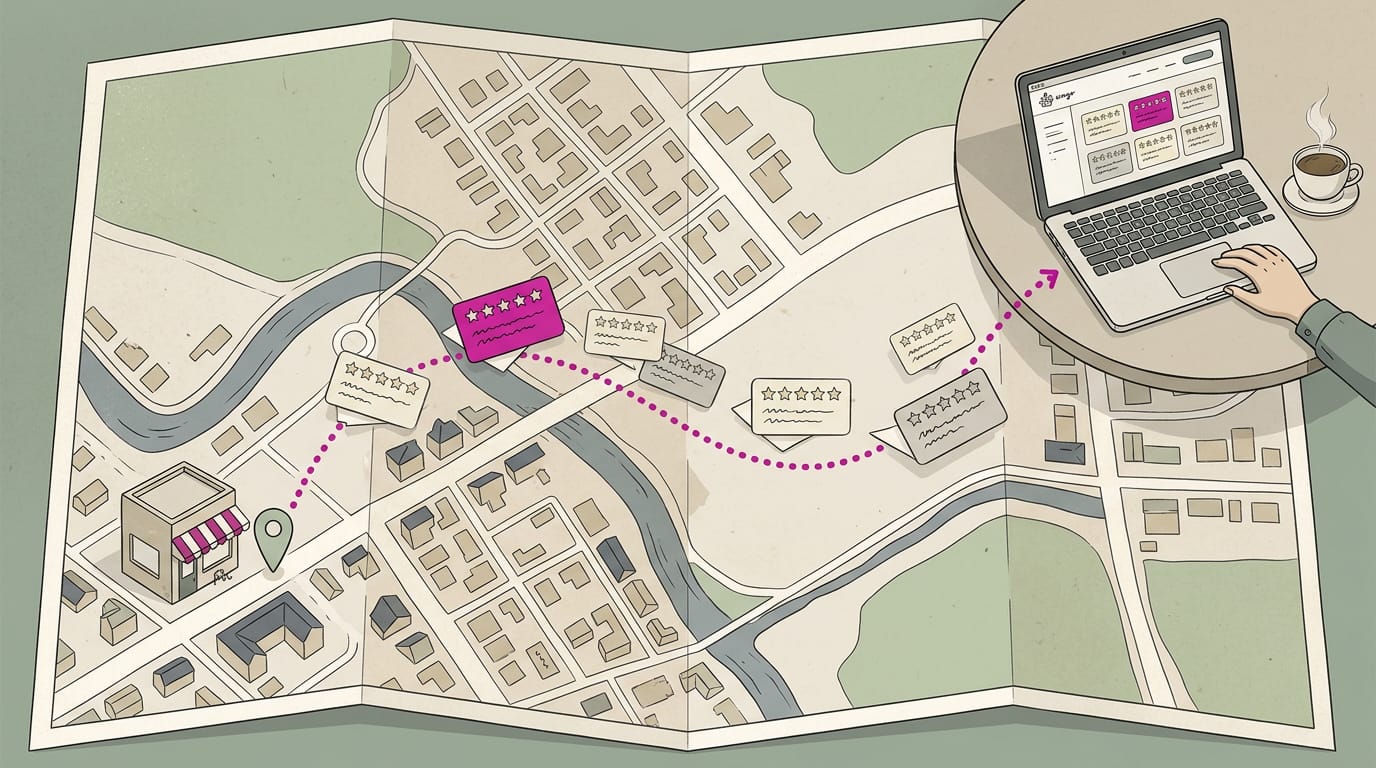
Embedding Google reviews means displaying customer feedback from your Google Business Profile directly on your website, using an automatically synced widget or simpler options such as a map, screenshot, review link, or rating badge. Choose a display that fits your site, place reviews where visitors make decisions, and keep them current while showing a fair mix rather than hiding every critical review. Visible, genuine feedback can build trust and help visitors decide whether to contact or book with your business.
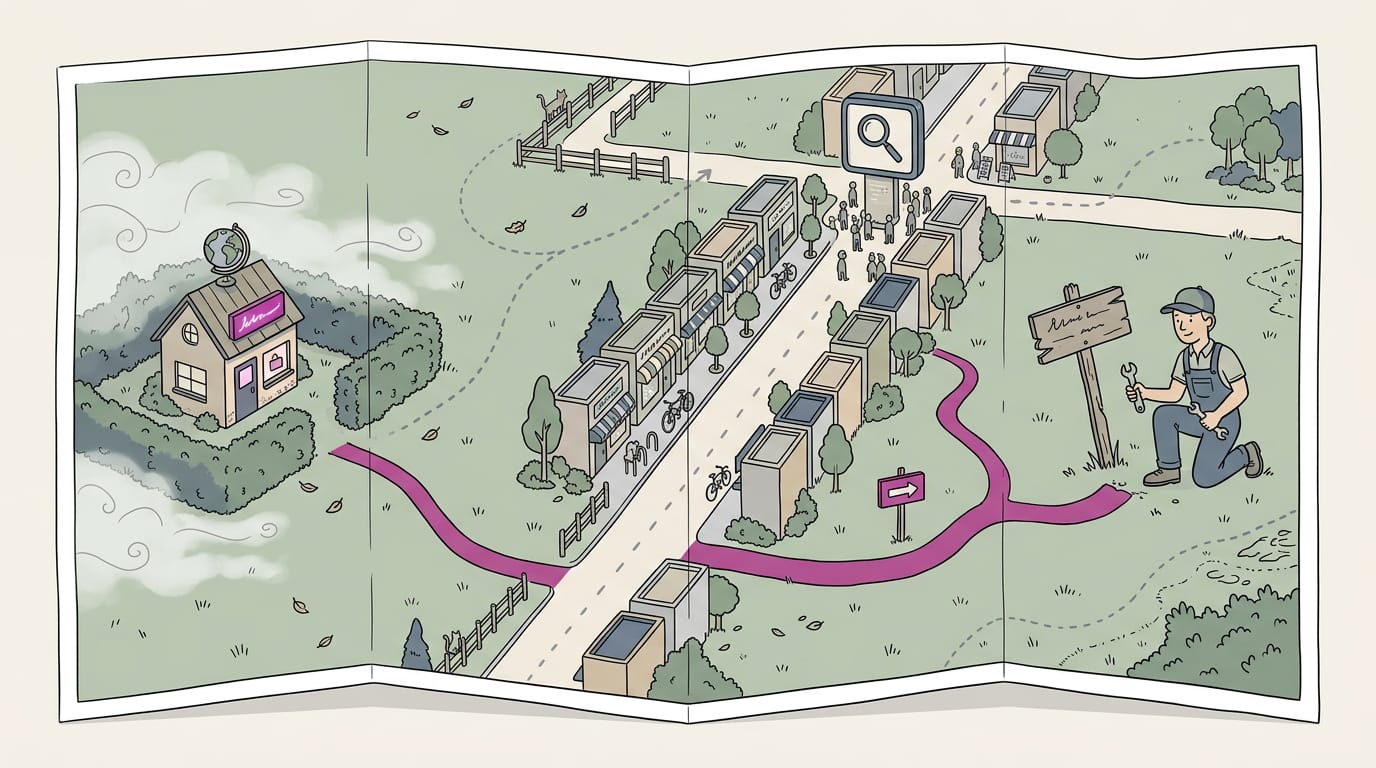
Think about how you choose a dentist or a plumber. You probably check what other people said first. Your Google reviews do that job, but they mostly live on Google, and many visitors to your website never see them.
Embedding means displaying those reviews directly on your own site, so the trust you’ve earned works on every page. This guide covers each method, the setup steps, the controls you have, and the common problems to avoid.
Ways to Embed Google Reviews
We’ll walk through the three main ways to show Google reviews.
Let a widget sync your reviews automatically
A review widget is a small tool that pulls your Google reviews onto your site and syncs with Google automatically. Widgets come in free and paid plans, and no coding is required.
Think of a plumber whose reviews update while the crew is out on jobs. Set it up once. The reviews stay maintained for you, not managed by you.
Built-in options straight from Google
Google offers three simple options:
- Embedded map. Add a Google Maps map of your location to your site so visitors can find you.
- Direct review link. Share a link that takes customers straight to where they can leave a review.
- Screenshot plus link. Screenshot your best reviews and pair the image with a link to your profile.
The tradeoff is limited customization and filtering: you get little control over how reviews look or which ones show.
Consider a salon owner with no spare hours. She screenshots her best reviews, adds the link beneath, and her homepage now shows real customer words. Just one catch: a screenshot is a snapshot, not a live feed, so retake it when reviews change.
Show your star score with a badge
An aggregated rating badge rolls your reviews into one star score. It shows how people rate you, not what they wrote, so it’s a signal, not a showcase.
A floating badge stays in a corner as visitors scroll, and you can generate one from your Business Profile.
Picture a new patient comparing three dental offices. The badge shows the score before they’ve read a word, which can prompt a call.
Why It Pays to Embed Google Reviews
Your website is often where a customer decides whether to call. Embedding Google reviews puts proof right there.
Building trust with real customer voices
Your homepage can call you reliable all day, but you wrote it. A case study on Google Business Profiles notes that Google reviews are published separately from your site.
That makes them third-party reviews, and visitors give someone else’s experience more weight than your pitch.
Word-of-mouth works online too: a neighbor’s recommendation outweighs your own claims. Think of a plumber whose homepage shows recent reviews. A homeowner with a leak at 9pm calls the one with proof, not just promises.
Is it better to leave reviews on Google or Yelp? For most local businesses, Google comes first, since that’s where people look for you. Yelp is worth a second look if your regulars use it.
How reviews turn visitors into buyers
A conversion rate is the share of visitors who call or book.
Research from the Medill Spiegel Research Center links displaying reviews with higher conversion rates, and a study called The Value of Online Customer Reviews found a product’s conversion rate could climb by as much as 270% as it gathered reviews on sites that displayed them.
That’s a best-case number, not a promise.
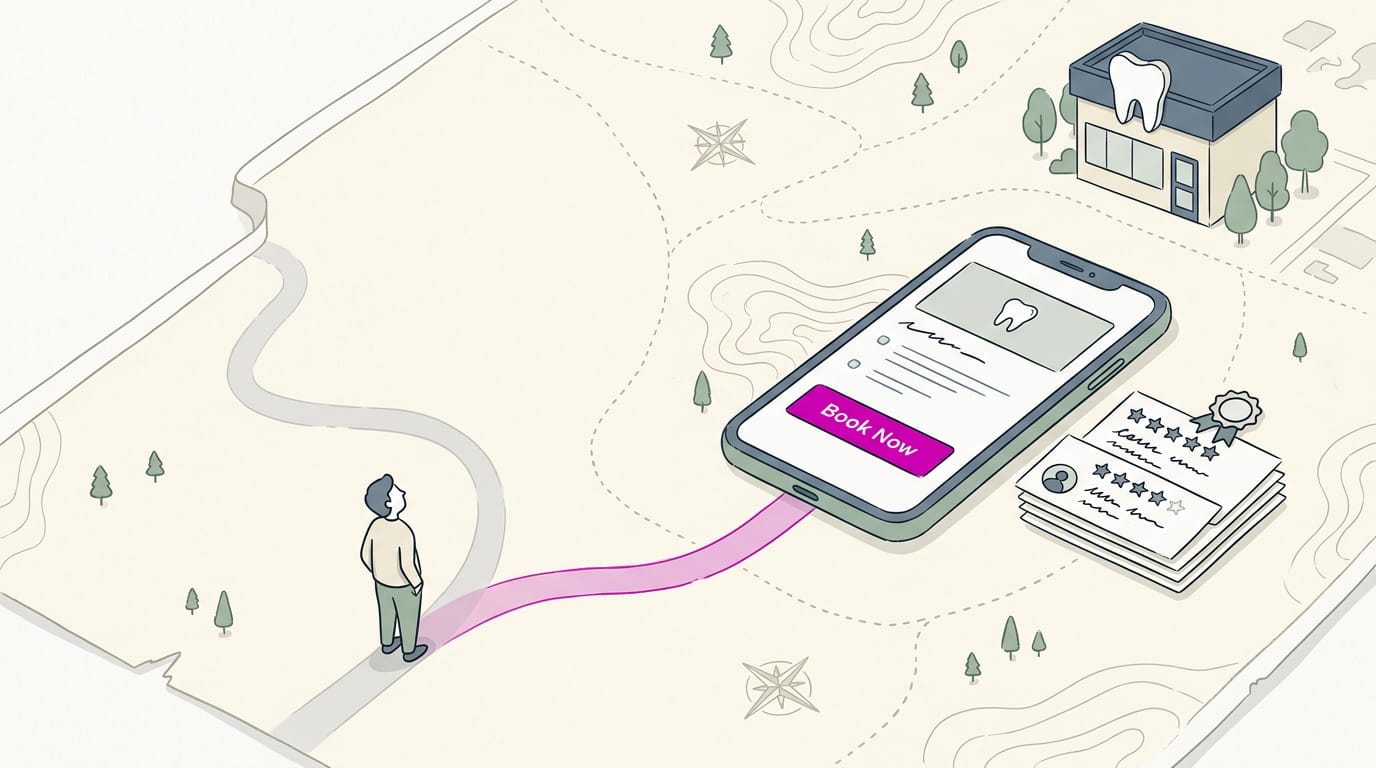
Think of a dental office with recent reviews beside its booking button. A patient on the fence reads one about a gentle cleaning and books instead of clicking away. Expert testimonials, from people who know your work, add weight.
Boosting local search and keeping visitors longer
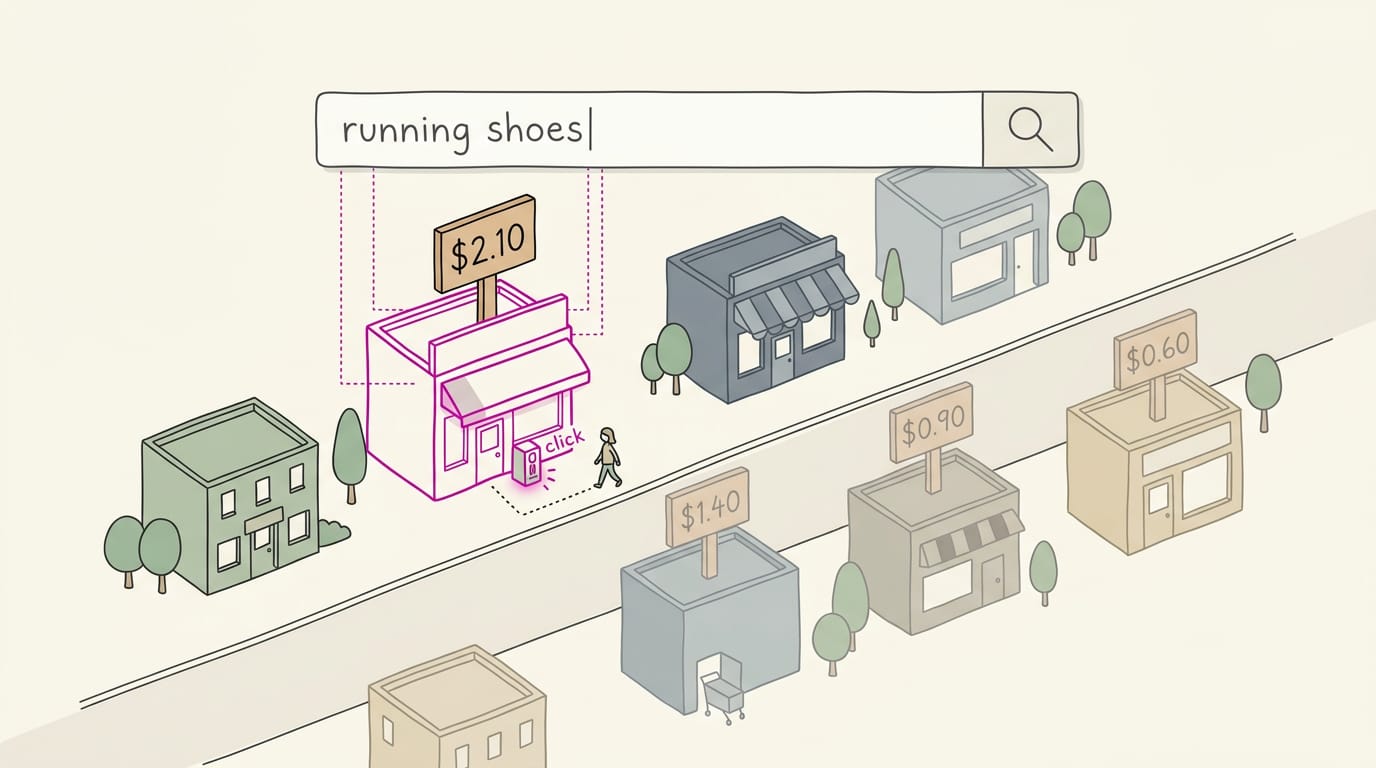
Reviews can support your local search engine optimization (SEO), the work of getting found for nearby searches. New reviews also keep your page looking current.
Some searches show star rating snippets, the gold stars under a result. They depend on review markup, code that tells search engines about your ratings and must follow their rules. Even done right, stars aren’t guaranteed, so treat them as a bonus.
Reviews can also lengthen your time on site. Session recordings from Baymard research, as summarized by BeyondReviews show buyers spend disproportionate time in product page review sections.
What the numbers say about reviews
- 98% read online reviews. Your visitors are probably reading yours too.
- On-site reviews lift conversions. Showing them on your own pages is worth the effort.
- Most reviews are 5-star. So show what customers actually wrote, not just favorites.
Set It up Step by Step
A widget is a small block of code that pulls your reviews onto your site. Here’s how to set one up, one step at a time.
Link your Google Business Profile
Start by connecting the widget to your listing. Identify your business by its Place ID (Google’s unique code for a location), its address, or its name, then choose the location you want and select reviews as the source.
No application programming interface (API) key, a software access code, is needed, so there’s nothing extra to request. Working from a van with no storefront? You can connect without a physical address, which suits a plumber who visits customers at home.
Pick a layout that fits your site
Your layout controls how reviews look. The main options are:
- Slider. One review at a time, which visitors click through.
- Carousel. A row of reviews that scrolls sideways.
- Grid. Reviews in tidy boxes side by side.
- List. Reviews stacked from top to bottom.
- Waterfall. Reviews of different lengths flow into columns.
- Tabs. Reviews sorted into clickable panels.
Choose a template in the editor and try a couple before you settle. A restaurant with a long menu page might suit a list, while a busy homepage might suit a slider.
Keep it simple, though: every widget adds code that visitors’ browsers must load, and a heavier layout can slow your page down.
Customize the look with editor or AI
The editor can take a plain-language prompt, where an AI (artificial intelligence) tool drafts a design from your description. Match your colors and fonts to your brand so the reviews don’t look bolted on.
A bakery owner who picks the cream and brown from the storefront sign gets a review section that feels like the same shop. Add a header with your star rating so visitors see your score before they read a single review.
The live preview shows changes as you make them.
Paste the code into your site
When the look is right, copy the code from the editor. Paste it into a custom HTML block, which lets you drop in code. HTML (HyperText Markup Language) is the language web pages are built with. Place the block where the reviews should appear.
On WordPress, that’s the HTML block in the block editor. Once the code is in, edits update automatically, so you paste it once rather than every time you tweak the look. That’s the whole job.
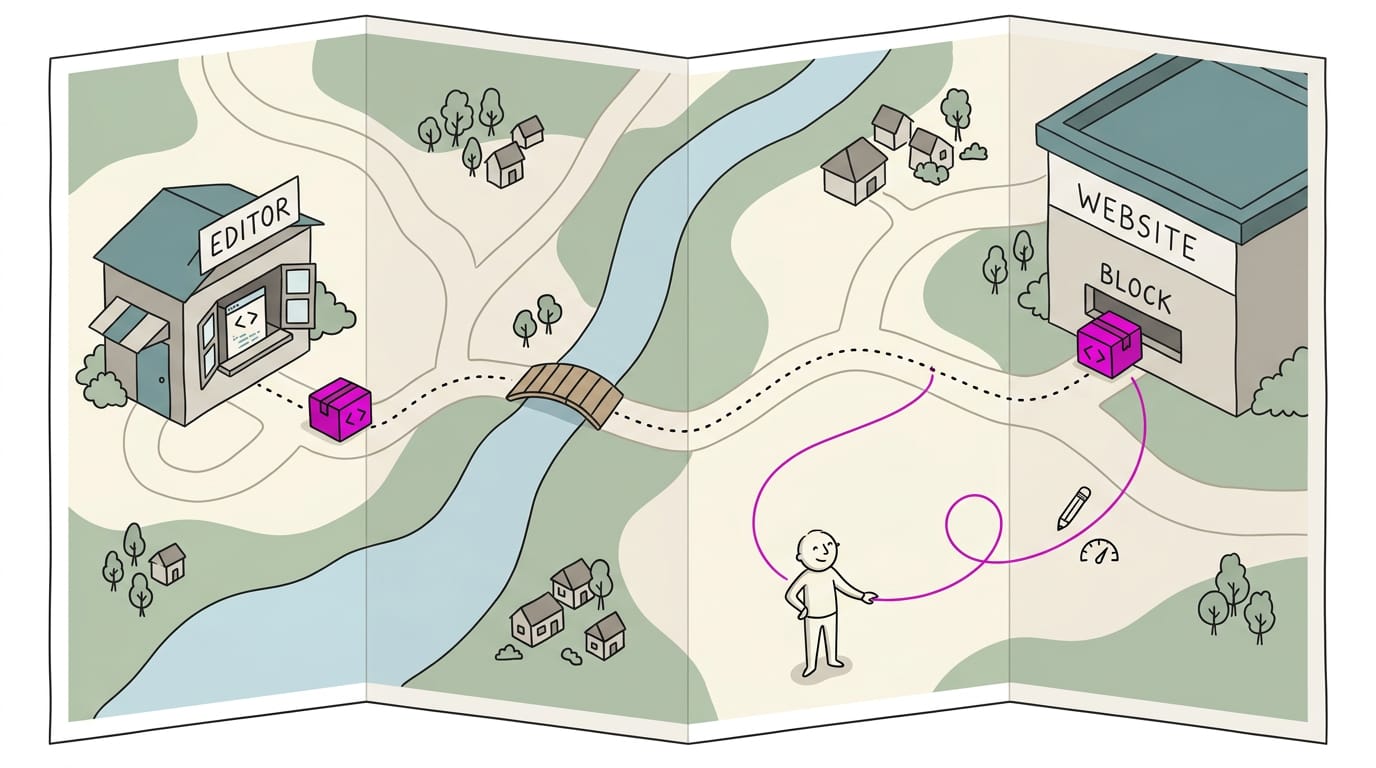
Works with WordPress, Shopify, Wix and Squarespace
The widget works with major website builders, including WordPress, Shopify, Wix and Squarespace. Each platform handles custom code in its own way, so follow the platform-specific guide that matches yours.
What You Can Control in the Widget
Once your widget is live, you decide what visitors see. Here’s what we’d adjust first, starting with which reviews appear.
Choose which reviews to show
Start with the big decision: which reviews belong on your site. You can limit the widget to 4 or 5 star reviews, so praise comes first.
You can also filter by keyword or reviewer (a plumber might show only reviews that mention ‘same day’), or hand-pick the reviews you want to feature. Then sort the list by date or rating.
Honesty matters here. Showing your best feedback is fine, but hiding every negative review makes the page look staged. The goal is to highlight your strengths, not to hide your weak spots.
Imagine a dental office with a three-star review about a long wait. A fair mix lets new patients see the real picture and book with confidence.
How each review looks and loads
Each card can show the reviewer’s name, photo, star rating, and date, so you decide how much detail to share.
A load more button reveals extra reviews only when visitors ask, navigation arrows let them step through the list, and opening a review in a dialog (a pop-up window) keeps them on the page.
A salon with a long review history might show a handful of cards with arrows and a load more button, keeping the page easy to scroll on a phone. Clean beats crowded.
Add a button that asks for reviews
Add a leave a review button that takes customers straight to Google’s review form. You can also set up custom call-to-action buttons, such as ‘Tell us how we did.’
Consider a bakery owner who places the button under a note about weekend specials. A customer who just picked up a birthday cake taps it and lands on the form in one step. Fewer steps make it easier to finish.
Show an AI summary of feedback
Add an artificial intelligence (AI) summary card that condenses customer feedback into a few sentences, so visitors get the big picture without scanning every review.
A busy restaurant can let the card do the skimming, so a diner planning a Friday dinner gets the gist in seconds. Less scrolling, more deciding.
Translate reviews and manage many locations
Auto-translate converts reviews into the visitor’s language.
Multiple location widgets give each branch its own widget, an all-in-one reviews widget gathers feedback from every site, and matching reviews to each location page keeps each page focused on its own branch.
Picture a clinic with two offices across town. Matching keeps the feedback focused on one office instead of the whole group, so a patient booking the north office sees the north office’s reviews.
How often new reviews appear automatically
Auto-sync pulls in new reviews on its own. The sync interval varies by plan, so check yours before promising a customer their review will show up that day. New reviews appear on Google first, and the widget picks them up at the next sync.
Say a pet groomer gets a review Tuesday morning and wants it on the homepage by evening. Check the timing first. It’s less about whether reviews arrive and more about when they show up. Plan for some lag, and you won’t be caught off guard.
Best Practices and Real Examples
Placement, display, and cost all matter.
Where to place reviews on your site
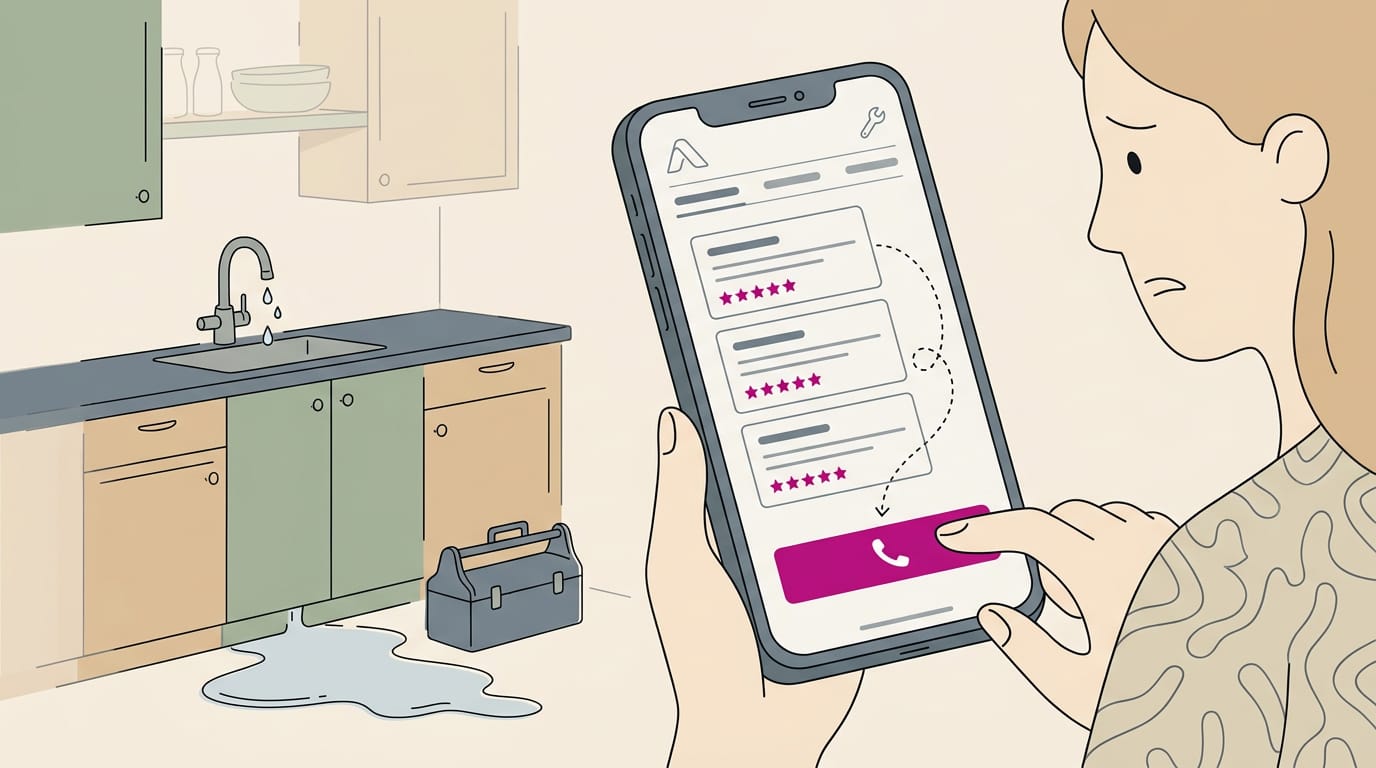
Picture a plumber whose homepage shows three recent five-star reviews above the phone number, so a panicked customer sees proof before dialing. It’s less about how many reviews you show and more about where they appear.
- Homepage and product pages. Put your strongest reviews where visitors land and decide.
- Dedicated testimonials page. Gather the full set for visitors who want more.
- Footer or sidebar. A quiet, site-wide trust signal.
- Keep reviews updated. Stale praise quietly loses its pull, so refresh monthly.
See how other sites display reviews
Most sites use one of four patterns:
- Slider on homepage. Reviews rotate across the top, good for a few strong quotes.
- Feed sorted by rating. Your highest-rated reviews stack first.
- Dedicated reviews page. A full archive for visitors who want depth.
- Floating badge. A small corner badge that stays visible and links to your reviews.
A dental office might pair a homepage slider with a full reviews page.
How much does it cost to get Google reviews?
Mostly it costs you time, and only a couple of options cost cash:
- Ask customers directly. Free, and a friendly request does most of the work.
- Google review link. A short link that opens the review box.
- Near-field communication (NFC) cards. Customers tap their phone to open your review page. Buy a small batch first.
- Contests or promotions. Prizes add a real outlay, so budget for them before you start.
Your real cost is your time per request, plus any cards or prizes you buy. Ask right after the job, while the visit is still fresh. When you ask counts as much as whether you ask. Timing costs nothing.
Plans, Pricing, and Common Questions
Before you pick a tool, know what you’re paying for and why a review might be missing.
Comparing free and paid plans
Many embed tools have a free plan, but the real question is what it leaves out. Its limits on what you can show matter too. Branding removal is a paid feature, so the tool’s name may stay on your embed until you upgrade.
The Pro plan adds features on top of the basics, so compare its list with your needs.
Many providers offer a free trial. Check its length and whether it needs a card. Consider a salon owner who wants reviews on her booking page before a holiday weekend, so bookers see proof first.
She can test the free plan, then a paid trial if she needs the branding gone.
Why can’t I leave a review on Google?
Usually it’s one of two things. Google doesn’t let owners review their own business, and reviews must come from a personal Google account. Consider a dentist’s office manager posting a thank-you review from the office computer.
It won’t go through, so the team asks patients to use their own accounts.
You usually don’t need your own Google application programming interface (API) key, an access code that lets software talk to software. Skip it unless your tool asks. Links aren’t allowed in review text, so leave web addresses out of any request you send.
Even posted reviews can take a while to appear in your embed. A plumber who gets a glowing review Tuesday may not see it on his site yet, so give it time. Most tools also let you hide or exclude specific reviews.
That changes your site, not what’s posted on Google. Use it for outdated or off-topic reviews, not to quietly drop the honest critical ones.
Embedded reviews turn praise you’ve already earned into something a visitor sees before they ever pick up the phone.
Choose the method that fits your site, set it up carefully, and keep the display honest by showing a true mix of reviews, not just the best ones.
Pair it with a steady way to ask happy customers for reviews, and check the widget now and then so it stays current.
The reviews are already there. Now make sure every visitor sees them.
References
- How Online Reviews Influence Sales — spiegel.medill.northwestern.edu (2025)
- How can Google business profile translations impact a business: A case study — doi.org (2023)
- The Value of Online Customer Reviews — doi.org (2016)
- What Baymard research says about product reviews — beyondreviews.app (2026)
- Tips to improve your local ranking on Google — support.google.com
- Research: What Consumers Find Persuasive in Online Reviews — hbr.org
Questions
How much does it cost to get Google reviews?
Getting Google reviews is usually free, though it takes time to ask customers. A short review link costs nothing; NFC cards and contest prizes may add expenses. Don’t offer incentives in exchange for reviews, since Google prohibits incentivized reviews.
How do I get the URL for a Google review?
In your Google Business Profile, open the option to ask for reviews or share your review form, then copy the review link. You can send it to customers by text or email, or add it to your website. The link should take them directly to where they can leave a review.
Why can't I leave a review for a business on Google?
Google may prevent a review if you’re trying to review your own business or aren’t signed in to a personal Google account. Make sure you’re using your own account and not an account affiliated with the business. Reviews can also be delayed or removed by Google’s policies and automated filters.
Is it better to leave reviews on Google or Yelp?
For most local businesses, Google is the priority because customers commonly use it to find nearby businesses. Yelp may also be worthwhile if your customers regularly use it. If you have the time, maintaining a presence on both can help you reach different audiences.
Sources
- How can Google business profile translations impact a business: A case study, doi.org,
- How Online Reviews Influence Sales - Medill Spiegel Research Center, spiegel.medill.northwestern.edu,
- Tips to improve your local ranking on Google - Google Business Profile Help, support.google.com
- What Baymard research says about product reviews · BeyondReviews, beyondreviews.app,
- Research: What Consumers Find Persuasive in Online Reviews, hbr.org
- The Value of Online Customer Reviews, doi.org,